Cross-Platform Browser Profiles: One Identity on Every Host
Why a browser profile, not the host operating system, should define browser identity, and how to check that it holds on Windows, macOS, and Linux hosts.
BotBrowser Team
Prefer the maintained product doc?
This article has a matching page in the docs center. Use the docs for the canonical setup flow, current flags, and long-term reference.
Cross-platform profile work is comparable only when the target identity, profile revision, launch flags, and host record are kept together. BotBrowser keeps the profile as the identity source; it does not make every host or site behave identically.
TL;DR
Compare fixed records across hosts, isolate a changed version or flag, and treat a mismatch as a release decision rather than a profile guarantee.
Contents
- A User-Agent String Is Not an Identity
- Signal Families a Profile Has to Keep Aligned
- Hosts, Targets, and the Documented Support Matrix
- Compare Hosts and Investigate Mismatches
- Pairing Profiles With Per-Context Operation
- What BotBrowser Covers and Where It Stops
- Conclusion
A User-Agent String Is Not an Identity
Browser identity is more than one header. A website can read the platform name, the browser brand and version, installed fonts, graphics behavior, screen size, language lists, time zone, and media capability, and it can compare those values against each other. A browser that reports a Windows User-Agent while its fonts, screen, and graphics behavior come from a Linux server presents a mixed picture. That mixture is a privacy risk for the people who rely on the profile, and it is a support problem for the team that has to explain why the same workflow behaves differently on two machines. BotBrowser can keep the identity values of a selected profile consistent across host operating systems; it cannot change how a site or server treats that identity.
The need is practical. A team might run Linux servers for scale, macOS workstations for development, Windows desktops for desktop-oriented workflows, and Android-target identities for mobile validation, all at the same time. Support engineers have to reproduce a customer case without building a hardware lab, and a QA group needs a stable baseline before it approves a release. If the browser identity follows the host, each of those groups sees something slightly different. If it follows the profile, they can compare results with confidence.
User-Agent Client Hints make the point clearer. MDN describes the User-Agent Client Hints API as a way of exposing browser and platform information through request and response headers and a JavaScript interface, with a small default set of values and further detail returned only when a server asks for it. Those values need to agree with the User-Agent string, with each other, and with the rest of the profile. Changing the string while leaving the structured values at the host defaults creates exactly the kind of mismatch a coherent identity should avoid.
That is the reason a profile should be the source of identity. A profile is one file that records the values for the whole identity, so the host operating system stops being the default answer to every question the browser is asked. The BotBrowser Cross-Platform Profiles documentation describes the model in these terms: identity surfaces come from profile data, including the User-Agent, screen, fonts, GPU, and language stack, and host differences are constrained so the profile remains the primary source.
A concrete case shows what this means. Suppose a Windows-target profile runs on a Linux server. The platform name, the structured brand values, the font set, the screen metrics, and the GPU description should all describe a Windows desktop, even though the machine underneath is a Linux server. The workflow should also behave the way it does on a real Windows target when it reaches a page. If any one family still reflects the Linux host, the identity is only partly applied, and that is the gap a cross-host comparison is meant to reveal.
Signal Families a Profile Has to Keep Aligned
It helps to think in families of signals rather than single properties. For the selected target platform, a profile has to keep these families aligned with one another:
- Platform and browser brand: the User-Agent string, the structured Client Hints values, and the brand reported in headers should name the same platform and the same browser version.
- Screen and device metrics: resolution, color depth, pixel ratio, and touch support should match the device class of the target, whether that is a desktop display or an Android phone.
- Fonts and text rendering: the installed font set and the way text is laid out should follow the target platform, including East Asian text where it applies.
- Graphics behavior: the GPU description and the rendering behavior of canvas and WebGL should stay inside the device class the profile describes.
- Language, locale, and time: language lists, regional formatting, and time zone should agree with each other and with the region the workflow is meant to represent.
- Media and storage capability: codecs, memory class, and similar capability values should be plausible for the target device.
| Signal family | Record before comparing hosts | Reject as a mismatch when |
|---|---|---|
| Browser identity | userAgent, platform, brands | the declared target differs between fields |
| Display | screen.width, screen.height, devicePixelRatio | one value describes another device class |
| Regional settings | languages, locale, timeZone | the values name incompatible regions |
The list is a map of what to compare. Each family can be reviewed at a broad level, by looking at whether the page behaves as expected and whether the values on a representative host agree with the baseline your team approved. Nobody has to read every low-level value to notice that a Windows-target profile reports a Linux platform, or that an Android-target profile still shows a desktop screen.
The MDN guidance on User-Agent Client Hints shows why the first family needs care. A small set of values, such as the browser brand, the mobile flag, and the platform name, is sent by default. More detailed values, such as the platform version, the architecture, and the device model, are returned only when a server asks for them. A coherent profile has to answer both the default and the requested values consistently, so the answer a site receives does not depend on which question it asked first.
Fonts deserve special mention because they come straight from the host unless the profile takes over. The font consistency article explains why font behavior has to follow the target platform, and the CJK Font Rendering documentation describes East Asian typography consistency for the cases where Chinese, Japanese, or Korean text renders differently between hosts.
Hosts, Targets, and the Documented Support Matrix
Two terms keep planning clear. The host is the machine and operating system that runs the browser. The target is the platform that the profile describes. In a profile-driven model the two can differ on purpose: a Windows-target profile may run on a macOS laptop during development and on a Linux server in production.
Choosing a target is a product decision, not a host decision. Decide which platform the workflow is meant to represent, pick the matching profile, and then choose hosts for cost and convenience. The documentation lists the supported combinations, and each profile target is supported on each host class.
| Profile target | Windows host | macOS host | Linux host (ENT Tier1) |
|---|---|---|---|
| Windows profile | Supported | Supported | Supported |
| macOS profile | Supported | Supported | Supported |
| Android profile | Supported | Supported | Supported |
The other prerequisites are a BotBrowser installation on every host and a profile file in .enc or .json form. Linux and Ubuntu hosts require ENT Tier1. Android-target profiles are described in the Android Emulation documentation as a PRO license capability, and the Android profile testing article shows how an Android-target profile runs from a desktop or server host.
The documented scenarios follow ordinary delivery paths. A team can develop on macOS and deploy on Linux by keeping one profile artifact in source control or secret storage and deploying it unchanged. A CI job can run the same profile on Windows, macOS, and Linux runners and compare key outputs. A fleet can move between cloud hosts without regenerating identity profiles. In each case only the executable path changes in the launch command, while the profile file and launch flags stay the same.
Treat the profile file as a versioned release artifact. Keep it in source control or secret storage, give each revision an identifier, and record that identifier whenever a host runs it. The Profile Management documentation covers the profile lifecycle and versioning. When every host reads the same file from the same place, a difference in results points at the host or the launch flags, not at a stray copy of the profile.
Compare Hosts and Investigate Mismatches
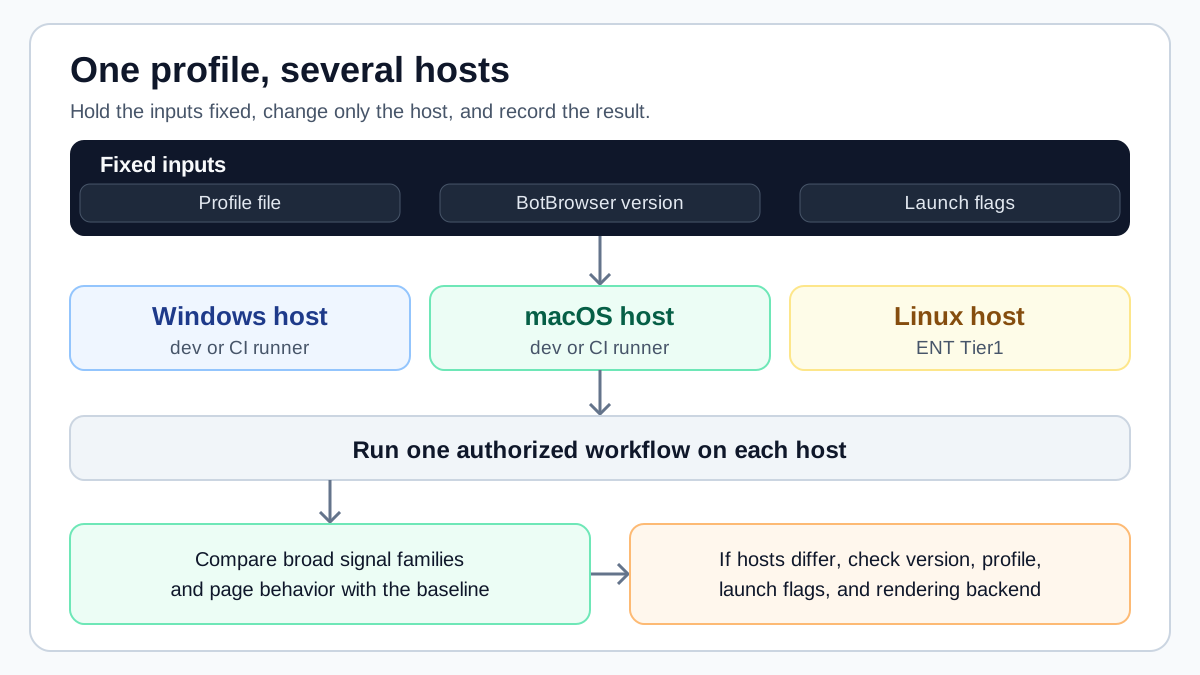
A claim of consistency becomes useful when you have evidence for it. The evidence comes from a simple controlled comparison during authorized testing: hold the inputs fixed, change only the host, and record what happens.
- Fix the inputs. Record the BotBrowser version, the profile file, and the launch flags in the test record.
- Choose representative hosts. Use at least one Windows host, one macOS host, and one Linux host that resembles production, including its display and graphics setup.
- Run one authorized workflow that represents the real work, from launch to the expected page state.
- Compare broad signal families and page behavior with the release baseline: platform values, screen values, language and time values, fonts, and rendering.
- Store screenshots, notes, and the approved decision together so the next release can be compared with this one.
Use one row per host in the release record: hostOs, botBrowserVersion, profileRevision, launchFlags, displayMode, and result. Three rows can use Windows 11, macOS 15, and Ubuntu 24.04 while retaining the same profileRevision; a changed launchFlags value makes that row a separate comparison rather than a clean host-to-host result.
Record what you see in plain terms. "The workflow reached the expected page state, the screenshots matched the baseline, and the platform, screen, and language values agreed with the profile" is a usable result. "It looked fine" is not. If the workflow is sensitive to startup or rendering conditions, run it more than once and keep every result.
Different roles read the same comparison for different reasons. A QA owner wants to know whether a release candidate matches the approved baseline. A support engineer wants to reproduce a customer case on the hosts that are available. A privacy reviewer wants to confirm that the identity a workflow presents is the one the profile describes, and not a side effect of the machine. One shared record serves all three, as long as the inputs are written down before the first run.
Linux hosts need an explicit readiness check. The Headless Server Setup documentation describes the Linux baseline, and the Linux rendering backend guide explains how the choice of rendering backend affects graphics behavior and deployment cost. Treat the display and rendering setup as a release prerequisite instead of a detail to discover after rollout.
The same method fits a CI job. The documentation suggests running the profile on Windows, macOS, and Linux runners and comparing key outputs such as platform values, languages, screen values, and rendering results. Keep the comparison at that level. A broad family either agrees with the baseline or it does not, and a disagreement is a reason to investigate before release. For a longer treatment of acceptance records, rollout ownership, and runtime cost, read how to evaluate cross-platform browser consistency before deployment.
When two hosts disagree, the first question is what changed. The troubleshooting guidance for different output across hosts is to verify the same BotBrowser version, the same profile file, and the same launch flags. Those three inputs explain most differences, and they are cheap to check.
- Version drift: one host runs a different BotBrowser release.
- Profile drift: a different profile file, or an older copy of the same one, was used.
- Flag drift: launch flags differ between a developer machine and a CI runner.
- Rendering backend: GPU-related differences can appear in headless mode, and the documentation points to the Headless Server Setup guide and the GPU mode setting.
- Font and text rendering: East Asian text can differ between hosts and has its own guidance.
- Unsupported host: a Linux host without ENT Tier1 is outside the documented support matrix.
Treat each item as a hypothesis, change one variable at a time, and rerun the same workflow. A mismatch between hosts is never evidence that the identity is consistent. It is a record of a difference that still needs an owner. In the same way, a match on one host does not carry over automatically to a new host image, a new profile package, or a new browser release, so repeat the comparison whenever one of those changes.
Decide in advance when to stop. An unexpected page state, a rendering result that blocks the work, a result nobody can reproduce, or a host that lacks a documented prerequisite are all reasons to pause the rollout and return to the last accepted baseline. Mark an unclear result as inconclusive instead of calling it a pass, and give it an owner and a date for the next check. Clear uncertainty is more useful than false confidence when a production decision depends on the answer.
A support engineer can apply the same order of questions to a customer report: version, profile, flags, rendering backend, then host. Following one order every time makes results comparable and keeps investigations short.
The Windows-target case is worth its own walkthrough, because it is the one teams most often run from the wrong host: Windows browser profiles on macOS and Linux lists the exact Windows signals to compare and the order to check them before you blame the profile.
Region deserves its own note. The profile supplies the platform identity, while the timezone, locale, and languages of a regional workflow can be set explicitly with launch flags so that they agree with each other and with the profile. Keep those values in the test record next to the rest of the inputs, so a later run starts from the same regional baseline. How dates, times, and time zones behave across environments is covered in Date-Time Formatting and Time-Zone Portability in Web Applications.
Pairing Profiles With Per-Context Operation
Before the first page, attach profileRevision, locale, timeZone, and a label such as retailer-de-desktop to the context so the same context can be identified on another host.
Teams that need many identities often ask whether they must start one browser per identity. The Per-Context Fingerprint documentation describes an alternative: assigning a separate fingerprint bundle to each browser context inside one browser instance, which lowers overhead and keeps accounts separated. Per-Context Fingerprint is an ENT Tier3 capability.
The two ideas solve different parts of one problem. Cross-platform profiles keep an identity tied to the profile rather than to the host. Per-context operation lets one browser instance hold several such identities, each with its own profile, language and time values, and screen metrics. According to the documentation, workers created inside a context inherit that context's identity.
The documentation also says that identity-bearing flags must be set before the first page or worker is created in a context, because that first page or worker fixes the context identity. Plan the order of operations accordingly, and validate each context with the same host comparison you use for a single profile. Capacity depends on the host, the workload, and the plan, so measure it on the hosts you intend to operate.
Per-context operation does not change the validation habit. Validate a representative set of contexts on each host class, record which profile each one used, and compare the same broad families. If a context uses an Android-target profile on a desktop host, review it with the Android checks instead of the desktop ones. Keeping the records per context also makes it easier to see whether a difference belongs to one identity or to the whole host.
What BotBrowser Covers and Where It Stops
BotBrowser can keep the selected profile as the source of the User-Agent, screen, fonts, GPU, and language stack, so one profile file can run on supported Windows, macOS, and Linux hosts and your team can compare the results across those hosts with the same version and launch flags. That gives a release owner a shared baseline to review instead of one result per machine. BotBrowser cannot guarantee identical results on every host or site, does not replace validation on representative hosts, and does not control how a website interprets browser signals. Linux hosts also require ENT Tier1.
Use that boundary when you write the rollout plan. State which hosts and targets you validated, which version, profile, and flags you used, and which results you reviewed. Describe everything outside that set as untested.
Revisit the plan when the sources change. The support matrix, the per-context requirements, and the Client Hints guidance are maintained by their owners, so recheck the sources listed below before you update host-support or identity statements in a rollout document.
Conclusion
Keep one profile revision and launch record per compared host. A different version, flag set, route, locale, or display mode changes the comparison input; record it as such before deciding whether to release.
Public Sources
This article is part of the guide: Web Platform Surfaces: A Consistency Review Map
Related Articles
Run a Windows Browser Identity on macOS or Linux
PlatformHow to Evaluate Cross-Platform Browser Consistency Before Deployment
PlatformHeadless and Headed Browser Profile Consistency
PlatformAndroid Browser Profile Testing on Desktop and Server
FingerprintLinux armv81 Browser Signals: Platform Boundaries
FingerprintWhat Is Font Fingerprinting? Cross-Platform Text Consistency
Run the same check in BotBrowser
Load a profile, keep the signals you just read about consistent inside the browser, and confirm the result on your own machine before a rollout.