Browser Automation CLI Recipes: Practical Command Examples
Copy-paste BotBrowser launch recipes, from a minimal headless start to proxy and multi-instance setups, with notes on how CLI flags override profile values.
BotBrowser Team
Prefer the maintained product doc?
This article has a matching page in the docs center. Use the docs for the canonical setup flow, current flags, and long-term reference.
A BotBrowser launch is a Chromium command line with a few --bot-* flags added. The flags decide which fingerprint profile loads, how traffic is routed, which regional values the session reports, and how several browser processes live side by side on one machine. The recipes below are launch commands you can copy, with an explanation of what each flag does and a way to add flags one at a time instead of starting from a long command nobody remembers writing.
Every recipe assumes you have a BotBrowser binary from the GitHub releases and a profile file whose major version matches the binary. Proxy addresses, credentials, cookie values, and file paths in the examples are placeholders. Replace them with your own, and treat each recipe as a starting configuration to adapt rather than a promise of identical results across platforms, profile versions, proxies, or target sites.
TL;DR
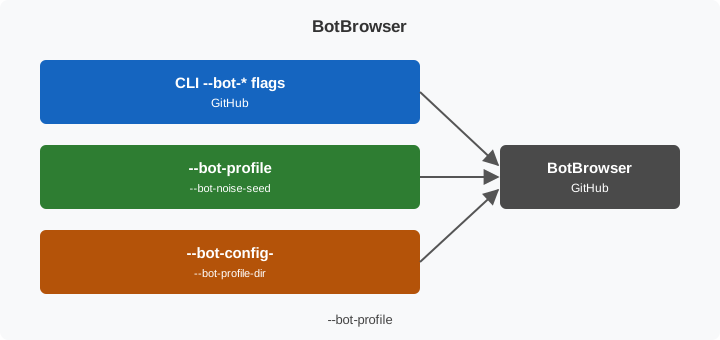
BotBrowser CLI recipes layer launch flags over profile configs and defaults. BotBrowser supports documented --bot-profile, --proxy-server, and --bot-noise-seed inputs for profile, route, and repeatable comparison; unlicensed flags do not take effect and recipes cannot guarantee proxy quality.
Contents
- Pick the smallest recipe for your scenario
- How CLI flags and profile values interact
- Launch recipes
- Running instances side by side
- Verify a recipe before relying on it
- License tiers, conflicts, and limits
Pick the smallest recipe for your scenario
Name the required inputs before adding flags: a minimal run needs --bot-profile, a routed run adds --proxy-server, and a repeatable comparison adds --bot-noise-seed. Record the chosen profile major and the binary major together; do not treat a command that omits those inputs as a comparable recipe.
Start from the scenario, not from the flag list. If you only need a local test run, the minimal launch is enough. If the session should exit through a specific route, add the proxy recipe. If you need regional values that differ from that route, add the overrides on top. If more than one browser process runs on the same machine, read the section on running instances side by side before you scale up. Each step adds flags to the previous one, so you can always remove the last addition and return to a configuration you already trust.
- Local test or development: the minimal headless launch.
- Routed session on a server: a proxy, an isolated data directory, and a debugging port.
- Regional values that differ from the exit address: timezone, locale, language, and location overrides.
- Several browser processes on one machine: separate data directories, separate ports, and a title for each.
- Repeatable comparison runs: fixed seeds for noise and timing.
- Session preparation: cookies, bookmarks, history, and custom headers.
- Diagnostics: Canvas recording and Chromium logging.
A command that stays short is easier to maintain. Every flag you add is one more thing to recheck after a profile or binary update, so keep only the flags that serve a requirement you can name.
How CLI flags and profile values interact
A profile carries a complete set of default values. It can also contain a configs block that overrides those defaults, and the command line can override both. According to the profile management documentation, the order from highest to lowest priority is CLI --bot-* flags, then the profile configs block, then the profile default values.
That order is what makes recipes practical. You keep one base profile and vary proxy, locale, seed, and window settings at launch, without editing the profile file. A recipe becomes a short, readable list of flags instead of a modified copy of the profile.
Existing commands that use the older --bot-config-* spelling remain supported. Use one spelling per option within a single launch command so the result stays easy to read.
Flag categories
The flags used in the recipes fall into a few groups.
- Core flags (
--bot-profile,--bot-profile-dir) choose which fingerprint profile loads. Every BotBrowser session starts with one of them. - Proxy flags (
--proxy-server,--proxy-ip) control routing. BotBrowser extends the standard Chromium--proxy-serverflag so credentials can be embedded in the URL. - Configuration overrides (
--bot-timezone,--bot-locale,--bot-languages,--bot-window,--bot-screen,--bot-browser-brand) replace specific values from the loaded profile. - Behavior toggles (
--bot-always-active,--bot-port-protection,--bot-local-dns) change runtime behavior that is not tied to one profile value. - Customization flags (
--bot-title,--bot-cookies,--bot-bookmarks,--bot-script,--bot-custom-headers) add session-specific data or a startup script.
Regional values from the exit address
By default BotBrowser derives timezone, locale, languages, and location from the IP address the session uses to reach the internet. With a proxy, that is the proxy's exit address. In most recipes you do not need to specify these values. Override them only when you need a configuration that differs from what the address suggests, and remember that the overrides depend on your license tier.
Standard Chromium flags
BotBrowser also accepts standard Chromium flags such as --headless, --user-data-dir, --remote-debugging-port, --window-size, and --enable-logging. Their meanings are listed in the Chromium command line switches reference. When you are unsure which kind of flag you are looking at, the --bot- prefix is a quick test, and the CLI Flags Reference is the authority for the BotBrowser ones.
Which layer wins for each setting
The priority order is fixed, but the practical question after a launch is different: which value did the session actually apply? The table records the layer that wins for five settings and the cheapest way to read the result back from the browser rather than from the command you typed.
| Setting | Profile default | Profile configs | CLI flag | Read it back from the session |
|---|---|---|---|---|
| Proxy route | Direct connection, or the route stored in the profile | A route written inside the profile configs | --proxy-server | Open an address echo page in the session and compare the exit address with the proxy host you configured. |
| User agent | The user agent string captured with the profile | A user agent written inside the profile configs | --user-agent, or a brand flag that rewrites it | Read navigator.userAgent in the Console and compare it with the flag value, not with the profile string. |
| Timezone | The timezone captured with the profile | A timezone written inside the profile configs | --bot-timezone | Read Intl.DateTimeFormat().resolvedOptions().timeZone in the Console. |
| Locale and languages | The locale and language list captured with the profile | Values written inside the profile configs | --bot-locale and --bot-languages | Read navigator.language and navigator.languages in the Console. |
| Screen and window | The screen and window dimensions captured with the profile | Dimensions written inside the profile configs | --bot-screen and --bot-window | Read screen.width and window.devicePixelRatio in the Console. |
A value in the rightmost column that differs from the flag you passed means the flag did not apply. The usual causes are a misspelled name, a license tier that does not cover the flag, or a second spelling of the same option later in the command.
Flag pairs that override each other without a warning
Some combinations do not fail. One input wins, the other disappears, and the command still looks correct.
--bot-profilenext to--bot-profile-dir: the directory wins and the single file is ignored, so a launch that was meant to pin one profile quietly varies between starts.--bot-screenor--bot-windownext to--window-size: the two describe different surfaces, and the reported screen can stay at the profile value while the real window follows the Chromium flag.--proxy-ipnext to a route that has changed: the session keeps reporting the address you typed, so a stale value survives a provider change.--bot-timezonenext to--bot-locale,--bot-languages, or--bot-location: each applies on its own, and a combination that contradicts the exit address is accepted without a warning.- A brand flag next to an explicit
--user-agentstring: the two can describe different products, and both reach the page through separate surfaces. socks5next to--bot-local-dns: the name lookup happens at a different place than withsocks5h, and the route can resolve names that the proxy never sees.
Confirm each collision by reading the running page: compare the exit address shown by an echo page with the address the session reports, read navigator.userAgent next to the client hint values in the Network panel, and read the timezone, locale, and screen values in the Console. If two of those disagree, the command line is correct while the session is not.
A recipe that launches cleanly but reports the host value
The browser starts, the page loads, and the region comes back as the machine's own timezone and locale instead of the exit address. The command exits zero, so the only evidence is the value the page reads. Work through these checks in order.
- Confirm the route first. Load an address echo page and compare the exit address with the proxy host. Without a working route, every regional value is derived from the host address.
- Read the value the session reports, not the one you passed, so you know which of the two is wrong before you change anything.
- Look for an override that asks for the host on purpose.
--bot-timezone=real, or the same value stored in the profile configs, restores the machine setting. - Check the spelling and the license tier of every region flag. The overrides used in these recipes are ENT Tier1, and a flag without its tier leaves the derived value in place.
- Search the command for two spellings of the same option, for example the older
--bot-config-*name next to the current one. - Run once without region flags to see which values come from the exit address, then add one override at a time and read the result back.
Launch recipes
Each recipe shows the command, then explains the flags that matter. The binary name chromium-browser is the Ubuntu name. On Windows use chrome.exe or the full path to the extracted binary, and on macOS use the path inside the Chromium application bundle. The .enc file name in the examples is a placeholder for your own profile.
Minimal headless launch
The smallest useful configuration:
chromium-browser \
  --bot-profile="profiles/profile.enc" \
  --user-data-dir="$(mktemp -d)" \
  --headless
This loads the profile and runs headless with a throwaway data directory. Timezone, locale, and languages are derived from the IP address the machine uses. Use it for local testing and development.
Routed session with its own data directory
Add a proxy, a data directory that is unique to this run, and a debugging port:
chromium-browser \
  --bot-profile="profiles/profile.enc" \
  --proxy-server=socks5://user:[email protected]:1080 \
  --user-data-dir="/tmp/bb-session-$(date +%s)" \
  --remote-debugging-port=9222 \
  --headless
The proxy decides the exit address, and BotBrowser derives timezone, locale, and languages from it. A unique --user-data-dir keeps storage and session state independent from other processes. The debugging port lets a framework such as Playwright or Puppeteer connect to the running browser. Chromium binds that port to the local machine unless you pass --remote-debugging-address, so leave the default on shared machines.
Known exit address
If you already know the proxy's public exit address, provide it:
chromium-browser \
  --bot-profile="profiles/profile.enc" \
  --proxy-server=socks5://user:[email protected]:1080 \
  --proxy-ip="203.0.113.1" \
  --user-data-dir="$(mktemp -d)" \
  --headless
--proxy-ip skips the per-page IP lookup, which speeds up navigation. It accepts one IPv4 address, one IPv6 address, or a comma-separated pair. It is an ENT Tier1 flag, so confirm your tier before relying on it.
Explicit timezone, locale, and location
Use explicit regional values when the exit address does not describe the region you want:
chromium-browser \
  --bot-profile="profiles/profile.enc" \
  --proxy-server=socks5://user:[email protected]:1080 \
  --bot-timezone="Europe/Berlin" \
  --bot-locale="de-DE" \
  --bot-languages="de-DE,de,en-US" \
  --bot-location="52.5200,13.4050" \
  --user-data-dir="$(mktemp -d)" \
  --headless
These four overrides replace the values derived from the exit address, and all four are ENT Tier1. The timezone must be an IANA name such as Europe/Berlin, not an abbreviation such as EST. Keep the languages, locale, timezone, and coordinates consistent with each other, because a mismatch between them is something you have to catch yourself.
Matching the browser brand
Choose the brand the profile should report:
chromium-browser \
  --bot-profile="profiles/profile.enc" \
  --bot-browser-brand="edge" \
  --user-data-dir="$(mktemp -d)" \
  --headless
Accepted values are chrome, chromium, edge, brave, opera, and webview. When you set a brand, BotBrowser adjusts the User-Agent string, the Client Hints headers, and the related values to match it. The brand switch requires ENT Tier2, and webview requires ENT Tier3. Pick a brand that fits the platform and version of the profile you loaded.
Cookies, bookmarks, and history at startup
Prepare a session that starts with data already in place:
chromium-browser \
  --bot-profile="profiles/profile.enc" \
  --bot-cookies='[{"url":"https://example.com","name":"session_id","value":"abc123","domain":".example.com"}]' \
  --bot-bookmarks='[{"title":"Dashboard","type":"url","url":"https://example.com/dashboard"}]' \
  --bot-inject-random-history \
  --bot-always-active \
  --user-data-dir="/data/persistent-session" \
  --headless
--bot-cookies loads initial cookies. Every cookie object needs a url field, and cookies without one are skipped silently. --bot-bookmarks adds bookmark entries. --bot-inject-random-history adds browsing history, a small random number of entries by default or an exact count if you pass a number. --bot-always-active keeps windows and tabs active when they are unfocused. Cookies, history, and the always-active toggle are PRO features, and the persistent --user-data-dir keeps the result between runs.
Loading cookies from a file
For a larger set of cookies, read them from a JSON file:
chromium-browser \
  --bot-profile="profiles/profile.enc" \
  --bot-cookies="@/opt/data/cookies.json" \
  --user-data-dir="$(mktemp -d)" \
  --headless
The @ prefix tells BotBrowser to read the cookies from the file instead of parsing the value as inline JSON. A file is easier to review and avoids shell quoting problems. Treat it like a credential: restrict who can read it and keep it out of version control.
Fixed seeds for repeatable runs
Fix the seeds when you need two runs to be comparable:
chromium-browser \
  --bot-profile="profiles/profile.enc" \
  --bot-noise-seed=42 \
  --bot-time-seed=42 \
  --bot-time-scale=0.92 \
  --user-data-dir="$(mktemp -d)" \
  --headless
--bot-noise-seed makes the Canvas, WebGL, WebGPU, text, ClientRect, and audio protection reproducible: the same seed gives the same result across runs, and 0 keeps the profile defaults. --bot-time-seed makes the execution timing policy reproducible, and --bot-time-scale takes a float below 1.0 for the timing scale policy. All three are ENT Tier2. Use fixed seeds when you compare two builds or two configurations and want the only difference to be the change you made.
Recording Canvas calls for diagnosis
Write Canvas calls to a file when you need to see what a page asked for:
chromium-browser \
  --bot-profile="profiles/profile.enc" \
  --bot-canvas-record-file="/tmp/canvas-capture.jsonl" \
  --user-data-dir="$(mktemp -d)" \
  --headless
--bot-canvas-record-file records Canvas 2D, WebGL, WebGL2, and WebGPU API calls to a JSONL file. Noise variance is disabled during recording, so the capture is deterministic. This is a diagnostic workflow, and the CanvasLab tool described in the documentation can replay the file. Leave it off for routine runs.
Framework-less automation with a bot script
Run a JavaScript file at startup without a separate automation framework:
chromium-browser \
  --bot-profile="profiles/profile.enc" \
  --bot-script="/opt/scripts/automation.js" \
  --user-data-dir="$(mktemp -d)" \
  --headless
--bot-script executes the file once per browser process right after BotBrowser starts, so no Node.js project is needed. Creating a new browser context does not replay the script, so a context that needs its own startup logic receives the flag through its own launch options. The Bot Script Automation guide shows what such scripts can do.
Window and screen sizes
Set the dimensions the session reports and the real window size together:
chromium-browser \
  --bot-profile="profiles/profile.enc" \
  --bot-window="1920x1080" \
  --bot-screen="2560x1440" \
  --window-size=1920,1080 \
  --headless
--bot-window and --bot-screen set the window and screen dimensions the session reports. They accept WxH values, profile, or real. --window-size is the standard Chromium flag for the actual window. Desktop profiles default to real in headful mode, so pass --bot-window=profile and --bot-screen=profile together if you want the profile's dimensions in a headed run.
WebRTC endpoints and local DNS
Control which WebRTC endpoints are exposed and where names are resolved:
chromium-browser \
  --bot-profile="profiles/profile.enc" \
  --proxy-server=socks5://user:[email protected]:1080 \
  --bot-webrtc-ice="google" \
  --bot-local-dns \
  --headless
--bot-webrtc-ice chooses the STUN and TURN endpoints that WebRTC exposes, using the google preset or a custom:stun:...,turn:... list. --bot-local-dns resolves proxy targets locally instead of relying on the proxy provider's DNS behavior. Both are ENT Tier1.
Custom request headers
Add headers to every outgoing HTTP request:
chromium-browser \
  --bot-profile="profiles/profile.enc" \
  --bot-custom-headers='{"X-Request-Source":"internal-tool","X-Team":"research"}' \
  --headless
--bot-custom-headers takes a JSON object and adds those headers to all outgoing requests. In JavaScript launch code, do not wrap the value in extra quotes, because the single quotes shown for Bash would become part of the value. Use it for headers your own services expect, and keep real secrets out of any command line that other users on the machine can read. This is a PRO flag.
Port protection
Keep local services out of reach of page-level probing:
chromium-browser \
  --bot-profile="profiles/profile.enc" \
  --bot-port-protection \
  --headless
--bot-port-protection stops remote pages from detecting which services run on localhost by covering commonly probed local ports, such as those used by development servers and remote desktop tools. Enable it on machines that also host local services. It is a PRO flag.
Chromium logging for troubleshooting
Send Chromium's log output to standard error:
chromium-browser \
  --bot-profile="profiles/profile.enc" \
  --enable-logging=stderr \
  --headless
--enable-logging=stderr is a standard Chromium flag. When a flag seems to have no effect, check its spelling, its license tier, and the order of precedence before reading logs. Turn verbose logging off for routine runs.
Running instances side by side
A profile is reusable. It can start several browser processes, so one profile file is not tied to one browser. What must differ between processes is storage and the control port.
Give every browser process its own --user-data-dir. Without separate data directories, processes share cookies, cache, and profile data, which leads to unpredictable behavior. Give every process its own --remote-debugging-port as well, because two processes cannot listen on the same port. Add --bot-title so a window title or taskbar entry tells you which process it belongs to.
#!/bin/bash
PROFILES_DIR="profiles/windows-chrome"
BASE_PORT=9222

for i in $(seq 1 3); do
  chromium-browser \
    --bot-profile-dir="${PROFILES_DIR}" \
    --bot-title="Worker ${i}" \
    --user-data-dir="/tmp/bb-worker-${i}" \
    --remote-debugging-port=$((BASE_PORT + i)) \
    --proxy-server=socks5://user:[email protected]:1080 \
    --headless &
done
wait
With --bot-profile-dir, each start selects a random profile from the directory. The directory flag cannot be combined with --bot-profile: if both are present, the directory takes precedence. Use --bot-profile when a configuration must stay fixed and --bot-profile-dir when you want variation between starts.
How many processes a machine can carry depends on its CPU, its memory, and the pages you load, so measure with your own workload before choosing a count. The loop above uses a small number only to keep the example short.
For servers, the headless server setup guide covers the Ubuntu environment that these commands assume.
Verify a recipe before relying on it
After you adjust a recipe, confirm what the session actually reports. Launch it, open a public fingerprint test page, and compare what you see with what you set: the timezone and languages against the exit address or your overrides, the window size against --bot-window, and the browser brand against the flag.
- Run the command twice with the same flags and the same seed, and check that the values you expect to be stable are stable.
- Run it once with a different seed or profile, and check that the values you expect to change do change.
- Open the test page with and without the proxy to see which regional values come from the exit address.
- Repeat the check after any update to the binary, the profile, or the flags.
Fingerprint test pages show whether a configuration is internally consistent on your machine. They do not predict how any third-party site will treat a session, so they cannot replace a trial of your own workflow against the sites and tools you actually use. How to Verify Your Browser Fingerprint Protection describes a longer testing routine.
Symptoms and first checks
Most surprises come from a small set of causes. Check these before anything else:
- A flag has no effect: check the spelling of the
--bot-*name and whether your license tier covers the flag. - The proxy does not work: verify the full URL form
scheme://user:pass@host:portand test the proxy on its own first. - The timezone looks wrong: pass
--bot-timezonewith a valid IANA name, for exampleAmerica/New_York, notEST. - The window size is ignored in a headed run: desktop profiles default to the real system dimensions, so set
--bot-window=profileand--bot-screen=profile. - A JSON value fails to parse: check the quoting. On Windows CMD, use double quotes for the outer string and escape the inner ones.
License tiers, conflicts, and limits
Some flags require a license tier. The CLI Flags Reference labels them (PRO, ENT Tier1, ENT Tier2, and so on), and a flag used without the required tier has no effect. In these recipes, the regional overrides, --proxy-ip, --bot-webrtc-ice, and --bot-local-dns are ENT Tier1, the brand switch and the seed and timing flags are ENT Tier2, and cookies, history, custom headers, and port protection are PRO. Check the reference for your version before you plan around a flag, because labels can change between releases.
When two settings conflict, the order described earlier decides: a CLI flag beats the profile configs block, and that block beats the profile default. Do not repeat the same option twice in one command, and use one spelling per option, so the command stays unambiguous.
To return to the profile's default values, launch without the --bot-* flags you added. Keep flag sets in a shell script, or in a shared configuration module that holds the args array for Playwright or Puppeteer, so a recipe is reviewed and versioned like any other code. There is no practical limit on the number of flags, but each one is a candidate to check when something behaves unexpectedly.
The same flags work on Windows, macOS, and Linux. Adjust the binary name and path format for the platform, and use a profile whose major version matches your binary. Profile Management explains how to choose and organize profiles.
BotBrowser cannot make a flag work outside its license tier, guarantee proxy quality or egress-IP accuracy, or replace testing the resulting configuration against your own target workflow.
Practical conclusion
Keep each command limited to named requirements, record profile and binary majors, and validate the route in your own workflow. The CLI selects documented inputs but cannot prove proxy egress quality.
Sources
This article is part of the guide: Browser Automation Getting Started: A First Run Map
Related Articles
Proxy Launcher in BotBrowser: Profiles, Proxies, and Setup
Getting StartedBrowser Automation Getting Started: A First Run Map
Getting StartedPuppeteer + BotBrowser: Launch and Profile Pitfalls
Getting StartedPlaywright Proxy: Routing, Auth and Unchanged Signals
IdentityBrowser Cookie Management for Multi-Identity Workflows
Getting StartedSelenium Scraping: Capabilities and Records
Run the same check in BotBrowser
Load a profile, keep the signals you just read about consistent inside the browser, and confirm the result on your own machine before a rollout.