Headless Browser Setup on Ubuntu Servers
Prepare an Ubuntu server for unattended BotBrowser sessions with system libraries, an Xvfb display, systemd services and bounded health checks.
BotBrowser Team
Prefer the maintained product doc?
This article has a matching page in the docs center. Use the docs for the canonical setup flow, current flags, and long-term reference.
TL;DR
Install only the required Ubuntu libraries, run a fixed Xvfb display, use a non-root service account, and verify a small user-visible task. Keep profiles, credentials, page data, and customer identifiers out of logs. Repeat the same checks after changes to the host, browser release, profile, or graphics backend.
Contents
- Host baseline and virtual display
- Install and launch
- Verification, health and recovery
- Change control and release approval
- Questions about headless Ubuntu hosts
- Deployment decision
Host Baseline And Virtual Display
Running BotBrowser on a headless Ubuntu server is the foundation of most production deployments. Servers have no physical display, graphics drivers differ from desktop systems, and the browser depends on system libraries that minimal server images do not install by default. Getting these details right separates a stable environment from intermittent failures that are hard to diagnose.
A production Ubuntu host needs the required libraries, a stable display policy, supervised browser services, and clear ownership of profiles and user data. These requirements apply to unattended BotBrowser sessions driven by Playwright or Puppeteer. BotBrowser can provide a controlled browser runtime for authorized workloads, but it does not replace host hardening, application accessibility, or privacy review.
Desktop environments handle display management, graphics initialization and font rendering automatically. Minimal server images omit many shared libraries and font packages that browser workloads use, and they provide no display at all. The BotBrowser deployment documentation states that BotBrowser requires a virtual display on headless servers, even when it runs in headless mode.
An incomplete setup can produce obvious failures such as "cannot open display", and quieter ones such as blank screenshots, missing characters or unstable media playback. Treat each of those outcomes as a failed release check and correct the host before production use.
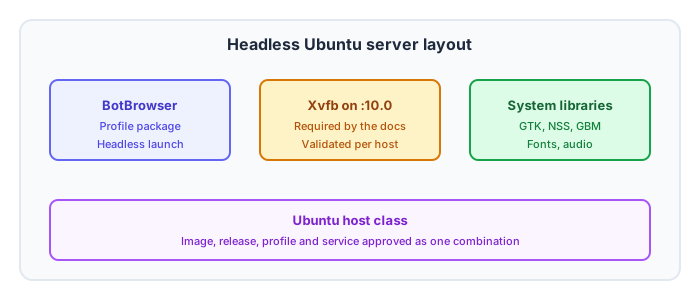
Plan for a virtual display on every host. The documentation starts from an Xvfb display on :10.0 and states that DISPLAY=:10.0 must be set for every BotBrowser process. Run Xvfb on that display, set DISPLAY in each browser service and keep the dependency between the services explicit. The display does not remove the need for validation: check representative rendering, media and screenshots on each host class before approval.
Xvfb (X Virtual Frame Buffer)
Xvfb is a virtual display server that implements the X11 protocol without display hardware. BotBrowser needs an X11 display even in headless mode, and Xvfb supplies it on a server.
Key configuration parameters:
- Display number (
:10): An arbitrary identifier. Using:10avoids conflicts with:0, which desktop installations may use. - Screen specification (
1920x1080x24): Width, height and color depth. Validate the selected depth with representative screenshots and rendering workloads. - DISPLAY environment variable (
DISPLAY=:10.0): Set it for every BotBrowser process, including each service unit and each manual test.
Browser System Dependencies
BotBrowser uses shared libraries for rendering, audio, networking and accessibility. A desktop Ubuntu installation usually has most of them. On a minimal server image, install them explicitly.
The critical categories are:
- Graphics:
libdrm2,libgbm1,libxcomposite1,libxdamage1,libxrandr2for display compositing - UI toolkit:
libgtk-3-0,libatk-bridge2.0-0,libatk1.0-0for accessibility and widget rendering - Security:
libnss3,libnspr4for TLS and certificate handling - Audio:
libasound2for audio initialization, even when no audio is played - Fonts:
fonts-liberationfor basic font availability - Desktop integration:
xdg-utilsfor MIME type handling - Supporting libraries:
libcups2,libdbus-1-3,libxkbcommon0,libpango-1.0-0,libpangocairo-1.0-0,libwayland-client0,libwayland-server0,libatspi2.0-0,libxss1
Step 1 below installs the full list. After installation, run the ldd check from the verification section to find any library that is still missing.
Why Headless Mode Still Needs A Display
The deployment documentation states that BotBrowser requires an X11 display even in --headless mode, so a server without a display can fail with errors such as "cannot open display". Treat the virtual display as part of the host baseline, not as an optional service.
Do not remove the display service to save resources. If a later release documents another supported startup path, recheck the documentation and validate that path on each host class before changing the baseline.
Missing Font Packages
Ubuntu Server ships with minimal font support. Install the documented packages, then review representative pages for missing characters, clipped labels, changed line wraps and document pagination. Keep the approved package set in the server image so comparable workers produce stable user-visible results.
Incorrect Display Depth
Start with a 24-bit screen such as Xvfb :10 -screen 0 1920x1080x24. Validate the chosen depth against representative rendering and screenshot workflows before approving the deployment.
Running As Root And Sandbox Errors
Chromium's sandbox can fail to start when a service runs as root or inside a container. Run the service as a non-root user. When a container requires a sandbox flag, follow the deployment guidance and test that exact combination instead of copying flags between environments.
Profiles, Hosts And Release Behavior
BotBrowser supports headless server deployments. Fingerprint properties such as screen size, fonts and GPU information come from the selected profile package rather than from the server hardware, while the host supplies the system libraries and a graphics backend. Validate the complete configuration on every host class you plan to use.
Use the same approved profile, browser release, dependencies, graphics backend and launch policy for comparable runs. Differences in drivers, libraries, media support and workload can still change visible output or capacity.
Servers usually lack a physical GPU, so rendering relies on a software backend. The documentation compares Mesa llvmpipe through ANGLE GL, SwiftShader and Mesa lavapipe, and recommends llvmpipe for most Ubuntu hosts. Record the host class and graphics path in the release record, because a run approved on one class does not approve another.
Install And Launch
Step 1: Install System Dependencies
sudo apt-get update && sudo apt-get install -y \
  fonts-liberation libasound2 libatk-bridge2.0-0 \
  libatk1.0-0 libatspi2.0-0 libcups2 libdbus-1-3 \
  libdrm2 libgbm1 libgtk-3-0 libnspr4 libnss3 \
  libpango-1.0-0 libpangocairo-1.0-0 libwayland-client0 \
  libwayland-server0 libxcomposite1 libxdamage1 \
  libxkbcommon0 libxrandr2 libxss1 xdg-utils xvfb
For Ubuntu 24.04, some package names have changed. If apt reports an unknown package, search for the renamed variant with apt-cache search, or start from this reduced list:
sudo apt-get install -y \
  libasound2t64 libatk-bridge2.0-0 libatk1.0-0 \
  libcups2t64 libgbm1 libgtk-3-0t64 \
  libnss3 libxcomposite1 libxdamage1 \
  libxrandr2 xvfb fonts-liberation xdg-utils
Step 2: Start Xvfb
Start Xvfb on display :10 before any BotBrowser process and connect every browser worker to it.
For immediate testing:
Xvfb :10 -screen 0 1920x1080x24 &
export DISPLAY=:10.0
For production, create a systemd service:
# /etc/systemd/system/xvfb.service
[Unit]
Description=X Virtual Frame Buffer
After=network.target

[Service]
Type=simple
ExecStart=/usr/bin/Xvfb :10 -screen 0 1920x1080x24
Restart=always
RestartSec=5

[Install]
WantedBy=multi-user.target
Enable and start the service:
sudo systemctl daemon-reload
sudo systemctl enable xvfb
sudo systemctl start xvfb
Step 3: Install BotBrowser
Download the Linux package that matches your architecture from the BotBrowser releases page. Architecture support depends on the specific release, so confirm it there. The installation guide states that Ubuntu binaries require an ENT Plan Tier 1 or higher subscription.
# Install the downloaded package
sudo dpkg -i botbrowser_<version>_amd64.deb

# Resolve missing dependencies if dpkg reports any
sudo apt-get install -f

# Verify installation
chromium-browser --version
Step 4: Download Profiles
Use the profile package that matches the installed browser release. BotBrowser 150 and newer profiles are available through subscription or support. Keep the package readable only by the service account, which the examples call botbrowser.
sudo mkdir -p /var/lib/botbrowser
sudo install -o botbrowser -g botbrowser -m 600 \
  /path/to/<matching-profile>.enc /var/lib/botbrowser/profile.enc
Step 5: Test Launch
Use the Playwright smoke task in Step 6 to test the complete launch path. Run it with the service account, profile package, working directory and graphics path intended for production, and with DISPLAY=:10.0 set. A successful test opens the approved page, completes its small action and closes normally.
Step 6: Playwright Integration
npm install playwright-core
const { chromium } = require('playwright-core');

(async () => {
  const browser = await chromium.launch({
    executablePath: '/usr/bin/chromium-browser',
    args: ['--bot-profile=/var/lib/botbrowser/profile.enc', '--proxy-server=socks5://user:[email protected]:1080'],
    headless: true,
  });

  const context = await browser.newContext();
  const page = await context.newPage();
  await page.goto('https://example.com');
  console.log('Title:', await page.title());
  await browser.close();
})();
Run it with the display variable set:
DISPLAY=:10.0 node script.js
Step 7: Systemd Service for Automation
For persistent automation workers:
# /etc/systemd/system/botbrowser-worker.service
[Unit]
Description=BotBrowser Automation Worker
After=xvfb.service
Requires=xvfb.service

[Service]
Type=simple
Environment=DISPLAY=:10.0
WorkingDirectory=/opt/scripts
ExecStart=/usr/bin/node /opt/scripts/worker.js
Restart=on-failure
RestartSec=10
User=botbrowser
Group=botbrowser

[Install]
WantedBy=multi-user.target
Manage One Workload Per Service
Keep each service unit responsible for one defined workload and one data directory. The application should own browser startup and shutdown so the supervisor sees a clear process state. This arrangement also makes logs, resource limits and restart policy easy to associate with the workload that produced them.
Create separate service units when applications have different release schedules, graphics requirements or security boundaries. Do not place a shell loop around several profile launches. A loop obscures which task failed and can leave child processes running after the parent exits.
Use the service manager for restart behavior. Set a delay between attempts and a start limit so an invalid profile or damaged image does not create a continuous restart cycle. A failed workload should remain visible to monitoring until the underlying configuration is corrected.
Verification, Health And Recovery
After completing the setup, verify the display, the browser dependencies and a headless launch:
# Check Xvfb is running
systemctl status xvfb

# Check display is accessible
DISPLAY=:10.0 xdpyinfo | head -5

# Check browser dependencies are satisfied
ldd /usr/bin/chromium-browser | grep "not found"

# Launch and verify navigation in headless mode with the display set
DISPLAY=:10.0 node -e "
const { chromium } = require('playwright-core');
(async () => {
  const b = await chromium.launch({
    executablePath: '/usr/bin/chromium-browser',
    args: ['--bot-profile=/var/lib/botbrowser/profile.enc'],
    headless: true,
  });
  const p = await (await b.newContext()).newPage();
  await p.goto('https://example.com');
  console.log('Navigation completed:', await p.title());
  await b.close();
})();
"
The browser should start without opening a visible guidance window, complete navigation and exit cleanly. Keep terminal output and the process exit code with the deployment logs.
Failure Triage Order
When a headless Ubuntu host runs but returns wrong rendering, follow one fixed check order so each result rules out a single layer: display service, display itself, graphics renderer, profile package, then the application task. Jumping straight to the application hides host drift behind an unrelated bug report.
- Run
systemctl status xvfb. A pass showsactive (running), a stable active time and no restart counter climbing. - Run
DISPLAY=:10.0 xdpyinfo | head -5. A pass reports the approved dimensions and depth, such asdimensions: 1920x1080 pixelsanddepth of root window: 24 planes. - Run
DISPLAY=:10.0 glxinfo -B. A pass names the approved software renderer in theOpenGL renderer string, for examplellvmpipe (LLVM ...). - Read the renderer string inside the browser session and compare it with step 3. A mismatch means the launch flags select a different path than the host default.
- Compare
sha256sum /var/lib/botbrowser/profile.encwith the approved value. A different value means the wrong package is loaded, not a rendering fault. - Re-run the smoke task from Step 6 with the same display, profile and flags, and compare the screenshot with the approved baseline.
Stop at the first failing step and repair that layer before repeating the whole order. A display that fails step 2 explains every visual symptom below it, and no amount of flag tuning corrects a stopped unit.
| Symptom | Check | Decision |
|---|---|---|
| Launch exits with "cannot open display" | systemctl status xvfb and systemctl is-active xvfb | Repair or restart the display unit before touching browser flags |
| Page loads but text shows missing glyphs | fc-list count against the approved image package list | Treat as font package drift and rebuild the image |
| Canvas, WebGL or media area stays blank | glxinfo -B renderer string | Align the launch flags with the approved backend, then re-run the smoke task |
| Screenshots are clipped or scaled | xdpyinfo dimensions against the profile screen size | Raise the Xvfb screen or correct the profile selection |
| The same profile renders differently on two hosts | Renderer string and sha256sum output from both hosts | Split the pool by host class until the difference is explained |
Same Profile, Two Hosts, Different Rendering
The harder failure is silent. Two hosts both return a successful task, yet the same approved profile renders text, canvas or video differently. Both hosts look healthy to a process check, so the difference only appears in a pixel comparison or an operator report. Isolate the cause in three passes, changing one input at a time and keeping the other two fixed.
Check the display first. Compare DISPLAY=:10.0 xdpyinfo on both hosts: dimensions, depth and screen count must match the approved configuration. A host with a 16-bit screen or a smaller framebuffer scales or clips content before the browser draws anything.
Check the GPU backend second. Compare glxinfo -B on both hosts and read the OpenGL renderer string and OpenGL version string. Two hosts that report llvmpipe, or one llvmpipe and one SwiftShader, are different deployment classes even when both pass the smoke task. Record the backend in the release record so the comparison stays repeatable.
Check the profile third. Compare sha256sum /var/lib/botbrowser/profile.enc and the profile version on both hosts. A host loading an older package, or a package built against another browser release, produces different fonts, screen values or media behaviour while still returning HTTP 200.
Once two of the three inputs match, the remaining difference points at the third, and the pool should be split by host class until an owner explains it. Do not average the two results or promote the faster host as the reference.
Service Readiness And Health
Define readiness from the workload, not merely from the existence of a browser process. A useful startup check confirms that the service accepted its configuration, created a browser session, opened one approved page and completed a small application action. The check should stop quickly when any of those steps fails.
Keep the health check separate from customer traffic. Use a dedicated test account or a public page that does not contain personal data. The result should state whether the application can start, navigate and close cleanly.
Distinguish startup health from ongoing health. Startup health protects deployment and restart decisions. Ongoing health should cover queue progress, recent task completion, process exit status, available disk space, memory pressure and the state of any required display service. A worker can remain alive while its application has stopped making progress, so process uptime alone is insufficient.
Set a reasonable deadline for each check based on the normal workload. Treat repeated timeouts as a service failure and preserve the application output that explains the last completed step. Avoid an aggressive check interval that competes with production work or repeatedly starts full browser sessions.
When a check fails, remove the worker from new assignments before restarting it. Allow the active task to finish only when the application can do so safely. Otherwise, record the interrupted task, stop the service and return the data directory to a known state before the supervisor tries again.
A minimal probe can run systemctl is-active --quiet botbrowser-worker.service, open a test URL and require exit code 0 before the worker becomes ready.
Logs And Failure Recovery
Send application output and browser terminal output to the platform's normal logging destination. Include the service revision, BotBrowser release, profile package version, server image and task identifier. Exclude page content, credentials, route secrets and customer records. The objective is to explain a service event without turning the log into a copy of the browsing session.
Rotate logs and crash artifacts before they consume the worker disk. Keep enough history to compare the candidate release with the last approved release, then apply the organization's normal retention policy. A fixed retention period is less useful than a policy tied to incident response and privacy requirements.
Classify failures by the action an operator must take. Configuration failures require a corrected service or profile package. Dependency failures require a repaired server image. Resource failures require workload or capacity review. Application failures belong with the application owner. This simple ownership model prevents repeated restarts from masking a persistent deployment problem.
Test recovery during staging. Stop the service during an approved test task, restart the host and temporarily make a required dependency unavailable. Confirm that monitoring reports the right service, that the supervisor respects its restart limit and that the next task starts from an approved state. Recovery evidence should be part of the image review.
Change Control And Release Approval
Treat the operating system image, browser release, profile package, service unit and application as one recorded deployment combination. A change to any layer can affect startup, rendering, media or resource use. Record each candidate combination before testing so a reviewer can reproduce it.
Apply image changes through the same staging path as application changes. Package updates, font packages, graphics libraries, container runtime changes and security policy updates all deserve a representative browser task. Approving the base image independently from the browser workload leaves an important gap.
Promote changes in small groups. When several layers must change together, keep the previous combination available and document the rollback order. Rollback should restore a complete approved combination rather than mixing an older browser with an unreviewed profile or service file.
After promotion, observe task completion, restart frequency, disk growth and resource pressure for the normal release window. Compare these outcomes with the approved staging run. A candidate that starts correctly but degrades under ordinary work should be removed from the pool before it affects additional tasks.
Keep the profile digest from sha256sum profile.enc beside the systemd unit revision so a rollback can compare those two deployment inputs precisely.
Headless Startup And Profile Guidance
BotBrowser 150 does not open visible profile guidance windows in headless launches. Missing, expired, invalid or version-mismatched profile packages are reported in terminal output, and the process follows the normal startup failure path. Headful launches retain user-facing guidance.
This matters for Playwright fleets and CI workers because a startup problem should not create a hidden desktop dependency or an unexpected window. Capture browser stderr with the job logs, treat profile guidance as a failed launch and replace the profile package before retrying.
Container logs can still mention unavailable desktop or graphics services. Judge readiness by successful session creation, completion of the approved smoke task and the selected graphics backend. The host libraries and profile package still need to match the deployment guide.
Operating Rules
Set DISPLAY=:10.0 for every BotBrowser service. Keep it in each service file instead of relying on a login shell, so service and host restarts start with the same environment.
Validate the Xvfb screen configuration. A 24-bit screen is a practical starting point, but approval should come from representative rendering and screenshot checks. Increase the Xvfb resolution when the profile's screen dimensions exceed it.
Monitor disk usage. The browser writes crash dumps and cache data to the directory set with --user-data-dir. Set up log rotation or periodic cleanup to prevent disk exhaustion.
Keep dependencies updated. Run apt-get upgrade periodically. Library version mismatches can cause subtle rendering issues.
Set resource limits. Use the systemd settings MemoryMax and CPUQuota to prevent a runaway service from consuming all server resources.
Release Approval
Approve the server image and BotBrowser release as one deployment combination. Record the Ubuntu version, BotBrowser release, profile package, graphics path, Xvfb screen configuration, service file revision and application revision. A passing result from another image is useful context, but it does not replace validation on the image that will enter production.
Begin with a cold start on a clean worker. Confirm that the service reaches its ready state, opens a representative page, completes one normal task and shuts down cleanly. Repeat the same task after a service restart and after a host reboot. These runs catch missing environment variables, permissions, mount timing and service-order problems that an interactive shell can conceal.
Review user-visible output next. Include a normal application page, a text-heavy page, a screenshot or document workflow, and media when the product uses it. Look for missing characters, clipped controls, blank regions, failed playback and unexpected changes in page size. The acceptance rule should come from the application owner rather than from a fixed universal tolerance.
Capacity approval needs a representative task mix. Increase concurrency gradually while watching memory, CPU, shared memory, file descriptors, disk growth and task completion time. Keep enough headroom for the operating system, logging and short workload peaks. Record the approved range for that exact image and revisit it when the page mix or browser release changes.
Failure handling is part of release approval. Stop one worker during a task, supply an expired or mismatched profile in a controlled staging run, and verify that the supervisor records the failure and returns the worker to a known state. Retries should not reuse a damaged user-data directory. Logs must identify the release and worker without containing customer secrets.
Promote the image only after the representative task passes on every host class that will receive it. If a GPU-backed and a software-backed pool are both used, treat them as separate deployment classes. Keep the previous approved image available for rollback until the candidate has completed the organization's normal observation period.
Questions About Headless Ubuntu Hosts
Does BotBrowser work on Ubuntu 24.04?
The documentation lists Ubuntu 20.04 or later. On 24.04 some package names changed, for example libasound2 became libasound2t64, so use the alternative install command in Step 1 and validate the result on your host.
Can I use a higher Xvfb resolution?
Yes. You can start Xvfb with -screen 0 2560x1440x24 or any size your workload needs. Increase it when the profile's screen dimensions exceed the default, then confirm with representative screenshots.
Do I need a GPU on the server?
It depends on the workload and the selected Linux graphics backend. Basic automation may use a validated software path, while media, WebGL or screenshot-heavy workloads can behave differently on other graphics paths. Test the intended release configuration on the target host.
Do I still need Xvfb in headless mode?
Yes. The documentation states that BotBrowser requires a virtual display on headless servers even in headless mode, and that DISPLAY=:10.0 must be set for every BotBrowser process. After a restart, run DISPLAY=:10.0 xdpyinfo | head -5 before checking rendering and media.
Why is there no window when a headless launch fails?
Headless operation reports startup guidance through terminal output instead of opening a desktop window. Keep that output with the worker logs and correct the profile or host issue before retrying.
How many instances can I run per server?
It depends on the host and the page workload. Measure representative pages with the intended profile, graphics backend, media, screenshots and worker activity. Keep operating-system headroom, monitor memory and swap pressure, and reduce concurrency before the host becomes unstable.
How do I check missing libraries?
Run ldd /usr/bin/chromium-browser | grep "not found". Any library listed as "not found" needs to be installed. Use apt-file search libname.so to find the package that provides a specific library.
Can I run BotBrowser on ARM-based Ubuntu servers?
Architecture support depends on the specific release. Check the GitHub releases page for the architectures it lists before planning an ARM pool.
How do I update BotBrowser?
Download the latest release and stage it with the matching profile package. Review the service configuration, dependencies, graphics path and representative workload before promotion, because release changes can affect deployment assumptions. Keep the previous approved combination available until the update passes the normal observation period.
Deployment Decision
Setting up BotBrowser on a headless Ubuntu server requires the correct system dependencies, a tested graphics backend and reliable service configuration. Run Xvfb on display :10.0 and set DISPLAY for every BotBrowser service. Measure representative pages before setting concurrency limits, preserve capacity headroom, and keep private profile and application data out of operational logs. Download BotBrowser to get started.
BotBrowser supports headless server fleets in two documented ways. It reads fingerprint properties such as screen size, fonts and GPU information from the selected profile package instead of the server hardware, and in headless launches it reports missing, invalid, expired or version-mismatched profile states in terminal output, so a worker fails visibly without a hidden window. That keeps properties consistent across approved hosts and gives operators a readable message in the job log. BotBrowser cannot install the host libraries, fonts or graphics backend, cannot guarantee identical rendering, media or capacity across host classes, and does not replace validating each image and workload before production.
For containerized deployments, see the Docker Deployment Guide. For capacity planning, see BotBrowser Performance Optimization. For CLI flag combinations, see CLI Recipes.
Practical conclusion
Use the host, browser release, profile, graphics path and workload as one tested combination. BotBrowser can make authorized browser sessions repeatable, but host dependencies, permissions, application outcomes and privacy controls remain the operator's responsibility.
To measure how headed and headless sessions differ before you rely on either, use the headless and headed signal comparison method.
Public Sources
This article is part of the guide: Browser Deployment and Release: Operations Map
Related Articles
Mesa llvmpipe vs SwiftShader for Chromium on Linux
PlatformHow to Evaluate Cross-Platform Browser Consistency Before Deployment
DeploymentScaling Browser Contexts with Per-Context Profiles
DeploymentBrowser Deployment and Release: Operations Map
DeploymentDocker Browser Automation: Deployment and Scaling Guide
PlatformRun a Windows Browser Identity on macOS or Linux
Run the same check in BotBrowser
Load a profile, keep the signals you just read about consistent inside the browser, and confirm the result on your own machine before a rollout.