Puppeteer PDF: Margins, Fonts, and Page Breaks
Generate Puppeteer PDFs with explicit page settings, print CSS, reliable page breaks, and a practical checklist for missing Chinese glyphs.
BotBrowser Team
Want the structured docs for Getting Started?
This article lives in the editorial library. For step-by-step setup, reference material, and ongoing updates, jump into the docs section.
Puppeteer can save a page as a PDF, but the output follows print layout rules rather than simply taking a tall screenshot. BotBrowser profiles can provide a declared font set for repeatable browser rendering; they do not choose print CSS, wait for an application's data, or guarantee that every requested CJK glyph exists in the installed font files. Set the paper and margins explicitly, wait for the page's own ready condition and loaded fonts, then inspect page breaks and representative glyphs before treating the file as complete.
TL;DR
page.pdf()uses theprintmedia type. Put document-specific page size, margins, and break rules in@media printand@page.- Set
format,margin, andprintBackgroundexplicitly when those choices matter; turn ondisplayHeaderFooteronly when templates are supplied. - Wait for the app's content-ready marker and
document.fonts.ready. Font readiness does not prove the chosen font contains every Chinese, Japanese, or Korean glyph. - Prefer modern
break-before,break-after, andbreak-inside;page-break-*names remain legacy aliases in print CSS. - A tofu box calls for checking installed font coverage and the actual PDF, not assuming that Chromium failed to embed a font.
Contents
- What
page.pdf()renders - Set page size, margins, and printed colors
- Control pagination with print CSS
- Diagnose CJK glyphs and verify the file
- Practical conclusion
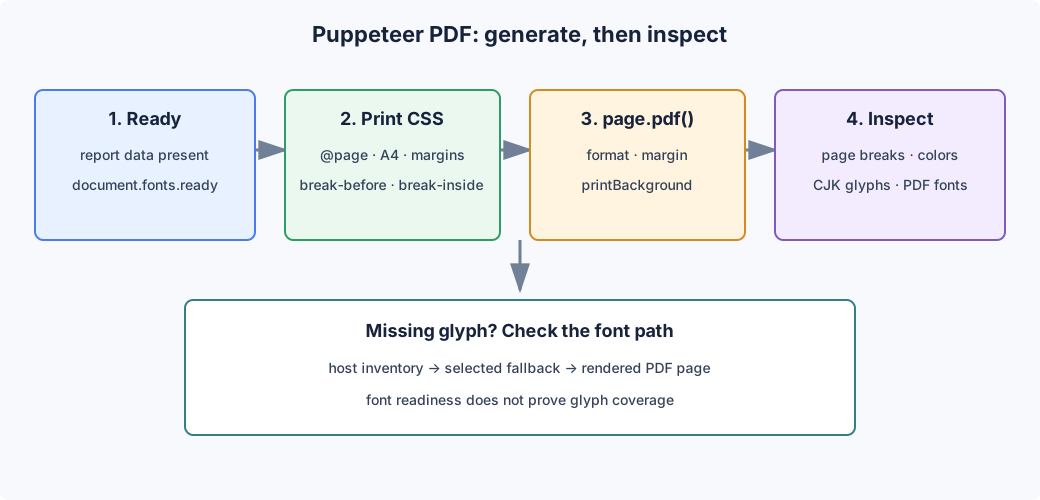
What page.pdf() renders
page.pdf() prints the current page using the print CSS media type. A rule inside @media print can therefore change what appears in the PDF without changing the screen view. A screenshot made with page.screenshot() is a raster capture of a viewport or page; a PDF is paginated output with paper dimensions, printable margins, and fragmentation rules. The capture options covered by screenshot best practices solve a different problem: preserving pixels from a particular view rather than laying content across sheets of paper.
That distinction explains many reports described as “the PDF ignored my CSS.” The stylesheet may contain only screen rules, or the CSS may set @page dimensions while the PDF call is also asking for a paper format. Puppeteer documents preferCSSPageSize for giving CSS page size priority; otherwise the PDF options can take precedence and the content can be scaled to fit. Choose one source of truth for paper dimensions instead of changing both until the result looks right.
The API returns a PDF buffer for the page's current state. It does not wait for an application's asynchronous data contract unless the caller does that first. networkidle0 can be useful for some pages, but it is not a universal “report is complete” signal: analytics, polling, or long-lived requests may keep a connection open after the report itself is ready. A selector or application event such as data-report-ready="true" gives the test a domain-specific completion condition.
Set page size, margins, and printed colors
The options that most often determine a usable file are explicit and small:
| Option | What it controls | Practical choice |
|---|---|---|
format | A named paper size such as A4 or Letter | Set it when the output contract names a paper size. |
margin | Top, right, bottom, and left page margins | Specify units such as mm or in; keep them consistent with @page. |
printBackground | Whether background graphics are included | Enable it when color blocks or background images carry meaning. |
displayHeaderFooter | Whether header and footer templates are printed | Enable it with explicit templates for page numbers or document metadata. |
preferCSSPageSize | Whether CSS @page size takes precedence | Use it when the stylesheet owns the paper dimensions. |
The documented defaults are not a design recommendation: the paper format defaults to Letter, margins are not set, background printing is off, and headers and footers are off. Those defaults are reasonable for a basic print operation but can surprise a report pipeline that assumes A4, colored charts, or page numbering. Store the chosen settings with the test or service configuration so that an upgrade does not silently change what “the PDF” means to downstream consumers.
import fs from 'node:fs/promises';
import puppeteer from 'puppeteer';

const browser = await puppeteer.launch({ headless: true });

try {
  const page = await browser.newPage();
  await page.goto('https://example.test/report/42', { waitUntil: 'domcontentloaded' });
  await page.waitForSelector('[data-report-ready="true"]');
  await page.evaluate(async () => {
    await document.fonts.ready;
    return document.fonts.status;
  });

  const pdf = await page.pdf({
    format: 'A4',
    margin: { top: '18mm', right: '14mm', bottom: '18mm', left: '14mm' },
    printBackground: true,
    displayHeaderFooter: true,
    headerTemplate: '<span></span>',
    footerTemplate: '<span class="pageNumber"></span>/<span class="totalPages"></span>',
  });

  await fs.writeFile('report.pdf', pdf);
} finally {
  await browser.close();
}
Replace the example URL and readiness selector with the application's own route and signal. This version lets the API own the paper size; if the production stylesheet owns it instead, declare @page { size: A4; } and set preferCSSPageSize: true. Do not let both layers silently disagree. The header and footer templates are small HTML fragments; the page's normal stylesheet is not a substitute for styles inside those fragments, so use inline styles if their appearance must be controlled.
Margins may be declared either in the page.pdf() options or in @page. Do not add both sets casually: the effective printable area is the interaction of page size, margins, and page content, and competing values make clipping hard to explain. If the report uses CSS @page, verify the generated dimensions and set preferCSSPageSize: true; if the application contract is an API-level format and margin, keep the print stylesheet focused on content and breaks.
The paper choice also affects how existing CSS dimensions behave. format selects a standard sheet; the width and height options are the lower-level alternative when the output contract uses a custom size. The PDF options documentation gives format precedence when it is present, so supplying all three is not a way to make a custom sheet “more explicit.” Choose a named format or a width/height pair, and state portrait or landscape through the corresponding format or CSS page rule. Verify the resulting page dimensions once in the generated file; do not infer them from the browser viewport, which is a separate input.
For a multi-part report, pageRanges can reduce a large document to a useful review sample, such as the cover, a dense table, and a page with long CJK text. That is a quicker regression check than opening every page after a CSS change. A range is not a content selector, though: page numbers can shift when an earlier section gains a row. Keep one test that checks the complete page count and a separate focused render of the high-risk pages, so a correct sample cannot hide a missing final section.
Backgrounds are also a deliberate choice. With printBackground disabled, a colored chart may lose its fill even though its labels remain. If exact colors are part of the artifact, test the resulting PDF in the same color pipeline used by its reader; CSS can request print color adjustment, but the viewer and printer can still apply their own color handling. Do not use a screenshot comparison alone to decide whether a printed color is correct.
Header and footer content is a separate miniature document. With displayHeaderFooter enabled, supply headerTemplate and footerTemplate; the documented placeholders include date, title, url, pageNumber, and totalPages. A page-number footer can be valuable for a PDF that readers print or cite, while repeating a full-width logo may consume printable area and push content onto an extra sheet. Keep templates small, set their font and spacing in the fragment itself, and check the first, middle, and final page because a long title can fit on one page and clip on another. For a one-page receipt, a blank template may be less confusing than enabling headers without visible content.
Control pagination with print CSS
The print stylesheet should describe where pages may break, what must stay together, and what belongs only on paper. @page configures page geometry, while @media print scopes document styles to printing:
@page {
  size: A4;
  margin: 18mm 14mm;
}

@media print {
  .chapter:not(:first-child) {
    break-before: page;
  }

  .result-card,
  figure,
  table tr {
    break-inside: avoid;
  }

  .screen-only {
    display: none;
  }
}
Use break-before: page for a section that should begin on a new sheet. Use break-inside: avoid on a compact unit such as a card, figure, or table row that becomes unreadable when split. It is not a promise that an arbitrarily tall element fits on one page: if the item is taller than the available page area, the renderer still has to place its content. Avoid applying “keep together” to a whole long report section, because it can push a large blank area onto the previous page or force awkward overflow.
Older stylesheets may contain page-break-before, page-break-after, or page-break-inside. Those legacy properties are compatibility aliases for the corresponding modern break-* properties; new rules should use the modern names. A rule such as page-break-before: always is not a substitute for checking the actual page boundary: margins, a heading's preceding content, and an element's height all affect where the break lands.
When a “next page” button does nothing in the PDF, check the rendering path in this order:
- Confirm that the PDF call uses print media and that the page-break rule is inside a stylesheet loaded by that route.
- Check whether
@pageand the API'sformatormargindisagree; make one layer authoritative. - Inspect the element's computed print styles and dimensions. A screen-only selector or a missing print stylesheet can make the break rule irrelevant.
- Check for a very tall parent with
break-inside: avoid; move the rule down to the smaller unit that truly must stay together. - Render the affected page range again and inspect the heading, table, and footer near the boundary.
For a long table, repeating a table header and avoiding a split row are separate concerns. A thead can be styled for print as a table header group, and rows can receive break-inside: avoid; neither setting guarantees the entire table stays on one sheet. For controlled reports, include a multi-page fixture with a short row, a tall row, and a section heading so a stylesheet change cannot pass by testing only a one-page example.
Page fragmentation can also expose layout that the screen never exercises. A flex or grid row that fits a wide viewport may become taller when printed at paper width; a fixed-height panel can clip after the print font wraps its text; and a heading near the page bottom can be stranded above its paragraph. Print-specific rules can keep a heading with the next block using break-after: avoid-page on the heading and can remove screen-only controls, navigation, or sticky elements. Check the computed styles under print media in the same browser build that produces the PDF, because inspecting the screen cascade does not tell you which rule won in print.
Avoid using page breaks to compensate for data that was not ready. If a chart or table is populated after the document signals ready, the page count may change on the next run and make a fixed break look unreliable. The readiness condition should represent the actual report data, while the stylesheet should represent the intended page layout. Keeping those responsibilities separate makes it possible to tell a late response from a bad break-before rule.
Diagnose CJK glyphs and verify the file
A square in place of a Chinese, Japanese, or Korean character usually means that the selected font path did not produce that glyph. The cause may be an absent font family, incomplete glyph coverage, a web font that had not finished loading, or a different font fallback on the host. It is not enough to see document.fonts.status === "loaded": that reports the loading set, not that a particular font file contains every character in the document.
Start with a small fixture containing representative simplified Chinese, traditional Chinese, Japanese kana, Korean Hangul, punctuation, and the symbols used by the real document. Wait for the page's explicit ready signal and document.fonts.ready, then inspect the host's font resolution and the PDF itself. On a Linux runner, fc-match "Noto Sans CJK SC" shows which installed font Fontconfig would match for that family; fc-list :lang=zh lists installed fonts advertising Chinese coverage. Those commands inspect the host inventory, not the exact font chosen for every glyph, so they are a diagnostic step rather than a proof of PDF contents.
Next render the PDF page that contains the sample as an image and inspect the actual output. pdffonts report.pdf can show which font resources the PDF references and whether they are embedded, while pdftoppm -f 1 -singlefile -png report.pdf /tmp/report-page renders a page for visual inspection. A font can appear in the PDF resource list and still be the wrong fallback for a character; compare the glyph, not only the metadata. For a deployment that requires predictable CJK text, pin the browser build and provide a known font set on every runner. The font-loading and layout-stability guide explains why a font that arrives late can move text; PDF generation adds the print media and pagination steps after that same font-selection problem.
Text extraction is a useful complementary check. pdftotext report.pdf - can show whether the output contains the expected characters and reading order, but it cannot prove that a viewer paints those characters with the intended shapes. A PDF may contain extractable Unicode while rendering a fallback box, or it may look correct while extraction order is awkward for assistive tools. Treat visual inspection, text extraction, page count, and font-resource inspection as separate signals, each answering one question about the file.
When a file differs only in line endings or page count, compare it with a minimal two-page fixture before changing margins. Fix one variable at a time: first settle the page size, then the font files and readiness signal, then fragmentation. If a single long paragraph crosses a boundary, that is often acceptable; if a heading is separated from its first paragraph or a table row is cut in half, target that unit with print CSS. A blanket break-inside: avoid on every container is not a safe repair because a container taller than a sheet cannot remain intact.
The font inventory is part of the rendering environment. A BotBrowser profile may declare a font collection, but the host still needs those font files to be available to the renderer, and the file must cover the target script. If the same report renders differently between a laptop and CI, compare the actual font inventory and browser build before adjusting line-height or margins. Browser release pinning and updates covers the separate version-control question; pinning the binary does not install missing fonts or freeze operating-system font libraries.
FAQ
Why does @media print change the PDF but not the screenshot?
page.pdf() renders with print media by default. A screenshot normally uses the screen media type unless the test explicitly changes it. Keep separate screen and print assertions when both outputs are product requirements.
Why are background colors missing?
The API's printBackground option defaults to false. Turn it on when backgrounds carry information, then inspect the PDF because downstream viewers and printers may still apply color management.
Why does a Chinese character become a box only in CI?
The runner may not have the same font family or glyph coverage as the development machine, or a web font may not have finished loading before capture. Compare the runner's font inventory, wait on the document font set, and render the produced PDF page; do not infer the cause from the browser version alone.
Should a report use page-break-before or break-before?
Use break-before for new CSS. page-break-before remains a legacy alias, but updating the property name does not resolve a conflicting paper size, a missing print stylesheet, or an oversized parent element.
Sources
- Puppeteer:
Page.pdf() - Puppeteer:
PDFOptions - Puppeteer: PDF generation
- MDN: Printing
- MDN:
page-break-before - MDN:
Document.fonts - BotBrowser: Font fingerprinting and font configuration
Practical conclusion
Set one authoritative paper size and margin policy, wait for the application's readiness condition and fonts, and verify the resulting PDF rather than only the page DOM. When pagination fails, inspect the print cascade, page geometry, and element size; when CJK glyphs are boxes, inspect host font coverage and the rendered file before changing layout. Keep the browser build and font environment with the artifact so a later change can be attributed to the renderer instead of being mistaken for a content edit.
This article is part of the guide: Browser Automation Getting Started: A First Run Map
Related Articles
How CJK Font Rendering Reveals Your Real OS in Browser Fingerprints
FingerprintWhat Is Font Fingerprinting? Cross-Platform Text Consistency
Getting StartedSelenium Scraping: Capabilities and Records
DeploymentReliable Screenshot Capture in Headless Browsers
Getting StartedPuppeteer + BotBrowser: Launch and Profile Pitfalls
Getting StartedBrowser Automation Download and Upload Test Hygiene
Run the same check in BotBrowser
Load a profile, keep the signals you just read about consistent inside the browser, and confirm the result on your own machine before a rollout.