Reliable Screenshot Capture in Headless Browsers
Browser screenshot best practices for headless capture: a fixed profile viewport, page-owned readiness signals, native full-page capture, and container memory planning.
BotBrowser Team
Prefer the maintained product doc?
This article has a matching page in the docs center. Use the docs for the canonical setup flow, current flags, and long-term reference.
BotBrowser supports repeatable screenshot capture in controlled browser contexts, but it does not certify visual equality across hosts, displays, fonts, or application states. Use the workflow below to test an owned route and record the boundary you actually reviewed.
TL;DR
Keep the profile viewport unchanged, wait for page-owned readiness and end markers, use native full-page capture, inspect the lower edge, and size container memory for the longest approved image. BotBrowser provides repeatable controlled capture, not universal visual equivalence.
Contents
- Start With the Profile
- Define Ready With Page-Owned Signals
- Capture the Document Without Stretching the Viewport
- Inspect the Lower Edge Before Publishing the Image
- Choose an Output That Matches the Job
Start With the Profile
A screenshot is useful only when it represents the page that the browser was asked to render. In a profile-backed browser, that starts with the profile's viewport. The viewport controls line wrapping, responsive breakpoints, sticky navigation, image sizes, and the amount of content visible before a scroll. It is part of the rendering contract, not a disposable setting for a capture script.
The most common mistake is to let the automation library choose a convenient default. A default context can be narrower than the selected profile, which changes the page layout before the screenshot is taken. A second mistake is to set a large viewport just to make a full-page image. That changes responsive layout and can make the output disagree with the browser session being recorded.
Leave the context viewport unset when the profile is meant to supply it. With
Puppeteer, use defaultViewport: null. With Playwright, create the context
without a viewport override. If a product requirement calls for a different
viewport, make that choice part of the profile and the capture specification,
then use the same choice for every comparable run.
const browser = await chromium.launch({
  executablePath: process.env.BROWSER_BINARY,
  args: [`--bot-profile=${process.env.BROWSER_PROFILE}`],
});

const context = await browser.newContext();
const page = await context.newPage();
The example deliberately contains no viewport setting. That omission is the important part. Do not call a viewport resize helper later to match the document height. A long document should remain a long document inside the profile viewport.
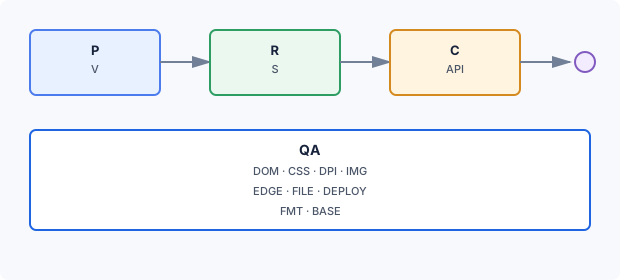
What the capture proves, and what the page reports
A screenshot is evidence about pixels, not a statement about the values the page computed. Keep the two next to each other so a review question lands on the right artifact.
| Signal | What the screenshot shows | What the same page reports | Why the gap matters |
|---|---|---|---|
| Viewport width | The width the layout was drawn at | window.innerWidth and window.visualViewport.width | A screenshot taken after a resize still looks plausible, while the reported width shows which breakpoint actually applied. |
| Screen size | Nothing about the emulated screen | screen.width and screen.height | The profile screen can differ from the context viewport, and only the reported values expose it. |
| Device pixel ratio | Output pixel dimensions | window.devicePixelRatio | A 3840 wide image can come from a 1920 viewport at ratio 2 or from a 3840 viewport at ratio 1. |
| Loaded font family | Glyph shapes, after the fact | document.fonts.status and document.fonts.check() | Fallback glyphs look close enough in a small image, but the reported font state names the family that was used. |
| Animation state | One frozen moment | element.getAnimations() and transition timing | Two images of the same page can differ only because the capture landed on a different frame. |
| Element geometry | Pixels where an element was painted | element.getBoundingClientRect() | A clipped footer looks correct at the top of the image; the rectangle shows the real position. |
Use the attribute table for the questions a picture cannot answer. If a reviewer asks which breakpoint, which font, or which frame, the answer comes from a computed value read in the same session, not from a second look at the image.
Define Ready With Page-Owned Signals
Navigation completion is not the same as visual readiness. A document can have finished its initial navigation while an application is still placing cards, loading a chart, selecting a locale, or replacing fallback fonts. A screenshot taken between those steps is a valid image of an invalid state.
Give each capture route a small readiness contract. A page-owned marker is usually more dependable than a delay because the page can set it when the content needed for the image is present. The marker can be an element with a stable attribute, a state value rendered in the document, or a route-specific component that is present only after the final layout pass. Keep the contract about visible content. It should not depend on a private browser event.
document.readyState reaches 'complete' once the load event has fired, which
still says nothing about a final layout pass. A region that sets
aria-busy="true" while it updates and clears the attribute when the work ends
gives the capture task a standard hook, and document.fonts.status reports
'loading' or 'loaded' for the font set.
A useful contract normally covers these points:
- The main content container exists and is visible.
- Data needed for the requested view has been rendered.
- The page has finished the layout changes that follow data arrival.
- Fonts needed for headings, labels, and body text are ready.
- Images in the capture range have either loaded or reached an intentional fallback state.
- A clear end marker exists for a full document capture.
The end marker matters for pages that assemble content progressively. Waiting for the first card tells you little about the lower half of a report. Waiting for the page-owned end marker gives the capture task a stable boundary. If a route has no natural end, define a deliberate capture boundary instead of pretending that an endlessly growing document is complete.
A Practical Wait Pattern
The following pattern uses a route marker, font readiness, and image state. It does not sleep for an arbitrary interval. Adapt the selector names to the page being captured, and make the marker part of the page contract rather than a generic selector shared by unrelated routes.
async function waitForCaptureReady(page) {
  await page.waitForLoadState('domcontentloaded');
  await page.locator('[data-capture-ready]').waitFor({ state: 'visible' });
  await page.locator('[data-capture-end]').waitFor({ state: 'visible' });

  await page.evaluate(async () => {
    await document.fonts.ready;
    await Promise.all(
      [...document.images].map(image =>
        image.complete
          ? undefined
          : new Promise(resolve => {
              image.addEventListener('load', resolve, { once: true });
              image.addEventListener('error', resolve, { once: true });
            })
      )
    );
  });
}
The image branch treats a failed optional image as a completed fallback so a single unavailable thumbnail does not hold the whole job forever. For a page where every image is required, make the page-owned marker conditional on the required assets and record a clear failure when one is unavailable.
Network idle can be a useful supporting signal, but it should not be the only one. Analytics, live updates, long polls, and open connections can keep a page busy after the visible content is ready. Conversely, a client-side render can finish without another network request. Use the page contract to express the state that the reader needs to see.
Avoid a fixed sleep after navigation. It makes a fast run wait and a slow run capture too soon. It also hides the real reason a page was not ready. A stable marker turns readiness into something that can be reviewed when a route changes.
Capture the Document Without Stretching the Viewport
For a viewport image, capture the visible page with the normal screenshot option. For a document image, use the automation library's native full-page option. The native option is the right boundary for a full-page request because it preserves the profile viewport while including content below the fold.
await waitForCaptureReady(page);

await page.screenshot({
  path: outputPath,
  fullPage: true,
  type: 'png',
});
This full-page API still produces an image, not paginated print output. When the deliverable needs paper size, margins, or page numbers, Puppeteer PDF generation and print layout covers the separate page.pdf() path.
Do not set the viewport height to the document height before this call. That shortcut changes responsive layout, can disable the very scrolling behavior that lazy content relies on, and creates an image that no longer represents the selected profile. It can also produce a surface too large for the display backend or container memory available to the job.
A Deterministic Capture Sequence
Order matters more than any single wait. Run these steps in sequence, and each one answers a question the previous step leaves open.
- Launch with the profile and no viewport override, so
defaultViewport: nullin Puppeteer or an untouched context in Playwright reports the profile dimensions. - Navigate with
waitUntil: 'domcontentloaded'and then stop. The load event says the parser finished, not that the layout is final. - Wait for the page-owned ready marker (
[data-capture-ready]) so the data-driven layout has run. Without it a fast run captures an empty container. - Wait for the page-owned end marker (
[data-capture-end]) so progressive content is complete. Without it a long report loses its lower half. - Await
document.fonts.readyso text is drawn with the profile font bundle instead of a fallback that metrics will never match. - Resolve every
imgin the capture range on load or error, so a late image cannot shift the layout between two runs. - Prime lazy sections with normal scrolling, then return to the top and re-check steps 3 and 4. Scrolling loads content; it does not replace native capture.
- Capture with
fullPage: trueandtype: 'png'from the unchanged viewport, so the image boundary matches the layout that was measured. - Record
window.innerWidth,window.devicePixelRatio, and the resolved font status next to the file, so a later diff names the setting that changed.
Write the file to a temporary name in the output volume and move it into place after the write closes, so a cancelled job cannot overwrite the previous approved image with a partial one.
If a page has lazy content, prime that content with normal scrolling before the native full-page call. Scrolling is a way to ask the page to load the intended range. It is not a replacement for full-page capture. Return to the desired top position, re-check the readiness contract, and then let the native capture option collect the document.
Infinite scroll needs an explicit boundary. Decide whether the capture ends at the current loaded set, a named section, or a route-specific completion state. Do not let a screenshot job scroll forever while the page continues appending items. A bounded report is easier to review, store, and compare than an image whose height changes with timing.
Fixed Elements and Responsive Layout
Sticky headers, consent panels, chat buttons, and floating toolbars can cover content during a full-page capture. The capture route should provide a print or archive presentation when those elements do not belong in the image. A small capture-only stylesheet is often clearer than trying to remove elements after the image is created. Keep that presentation decision in the page or route configuration, and keep the profile viewport unchanged.
Capture the same viewport for comparable runs. A different width can change line wrapping and card placement even when the page data is identical. A different device pixel ratio changes the output dimensions and the amount of memory needed while the image is assembled. Treat these as capture metadata, not as incidental values.
Inspect the Lower Edge Before Publishing the Image
The lower part of a long image deserves its own check. A screenshot can look correct in the first screen while losing the footer, clipping the final row, or showing a loading placeholder at the bottom. These failures are easy to miss when a review only opens the image at its top-left corner.
Add a stable end marker to the page and include it in the review fixture. The marker can be a footer heading, a final report section, or a small labelled completion region that is meaningful to the reader. It should be visible in the final image and should not be a hidden implementation flag.
Review the lower edge in three ways:
- Open a reduced preview to confirm that the document reaches the expected ending.
- Open the final portion at readable scale and check the last content row,
footer, borders, and background fill. A Playwright capture of that band
alone uses
page.screenshot({ clip: { x: 0, y: 800, width: 1280, height: 400 } }). - Compare the image dimensions and file size with the capture record. A
sudden change can signal a layout shift, missing section, or unintended
resource failure.
identify -format '%wx%h %b' shot.pngprints the two values that the record should match.
For automated quality checks, keep the assertion about the page contract and the captured artifact. Confirm that the end marker was visible before capture, that the output file exists, and that the image can be decoded. Store a small set of representative long-page fixtures for visual review. Exact pixel comparison is useful for a controlled regression suite, but it should be paired with a human-readable review because fonts, platform rendering, and legitimate content changes can affect individual pixels.
Do not use the page's raw document height as the only success condition. Height can be present before content is painted, and it can grow after an image is captured. The end marker and the artifact review answer the more useful question: did the intended content make it into the final image?
Give Tall Captures Room in Containers
Long screenshots consume more than the size of the PNG or JPEG on disk. The browser needs working space while it composes the page, the automation layer needs space while it receives the result, and the encoder needs room while it writes the file. High-DPI profiles multiply the pixel surface in both directions. A container with a small shared-memory mount may fail only on the longest page, which makes the issue look like a random capture problem.
Reserve shared memory for the actual workload. Account for the profile
viewport, device pixel ratio, longest approved document, image format, and the
number of captures that can coexist in the same container. Leave headroom for
browser startup and ordinary page rendering. Set the container's /dev/shm
size explicitly with the container runtime, or use the equivalent Compose
setting, instead of accepting the runtime's small default.
docker run --rm \
  --shm-size="${BROWSER_SHM_SIZE}" \
  -e BROWSER_PROFILE=/run/profiles/capture.enc \
  screenshot-worker
The value belongs in deployment configuration because it depends on the approved page set. Do not copy a number from a short-page test into a tall document workload. When the workload changes, repeat a capture of the longest representative page and inspect both the output and the container's resource signals.
Container sizing belongs with the rest of the server setup; headless server setup covers the flags and the display path that go with it. Other container resources matter too. Give the output directory enough space for a complete image and its temporary write, mount it with the ownership the worker uses, and keep browser profile storage separate from final artifacts. Make sure a failed write cannot replace the previous approved image with a partial file. Write to a temporary name in the same output volume, close the file, then move it into place using the normal atomic file operation for that filesystem.
When Xvfb is part of the approved Linux setup, its display surface must cover the profile viewport and use the color configuration validated for the deployment. Native headless mode may not need Xvfb. Do not add a virtual display merely because the capture is tall. Choose one supported display path, validate it with the target pages, and keep it consistent between development and production.
Choose an Output That Matches the Job
PNG is the safer default for text, diagrams, interfaces, and visual regression work. It keeps sharp edges and does not introduce compression artifacts around small labels. JPEG can be appropriate for photo-heavy previews where a smaller file is more useful than exact edges. Make the format part of the capture specification so a later job does not silently change the review criteria.
Playwright's page.screenshot() accepts type: 'png' or type: 'jpeg', and
omitBackground: true keeps a transparent background only in PNG. Puppeteer
also exposes type: 'webp' next to a quality value between 0 and 100, which
suits a consumer that can decode WebP.
High-DPI output is useful when readers will zoom into a report or when the image is used as an archival record. It also increases memory, transfer size, and storage use. The selected profile should determine the device pixel ratio; do not override it in the capture context just to make an image appear sharper. If a consumer needs a smaller preview, create that derivative after the approved capture rather than changing the browser's rendering contract.
Use a stable naming scheme that records the route, profile family, capture mode, and creation date without placing private page data in a filename. Keep the original artifact when a derivative is generated. This makes it possible to tell a rendering change from a thumbnailing change during a later review.
A Compact Production Pattern
The capture function should make the order of operations obvious: create a profile-backed page, navigate, wait on the page contract, capture with the native full-page option when requested, and close the page even when the capture fails.
async function capture(page, url, outputPath, fullPage = false) {
  await page.goto(url, { waitUntil: 'domcontentloaded' });
  await waitForCaptureReady(page);
  await page.screenshot({
    path: outputPath,
    fullPage,
    type: 'png',
  });
}
Keep browser creation outside this function when several routes use the same approved session policy. Keep page ownership explicit, close a page after its artifact is complete, and collect the error together with the route and capture mode. A failed capture should be visible to the job runner, not silently replaced with an old file.
For a batch, process each page through the same readiness and artifact checks. Do not create a special fast path that skips the end marker for later pages. The first page in a run often looks healthy while a slow page exposes missing memory, late fonts, or a growing document. The same contract makes those differences easier to interpret.
When a Capture Is Not Usable
Start with the visible symptom and check the contract in order.
The image is blank or mostly blank. Confirm that navigation reached the
intended route, the page-owned ready marker appeared, and the selected display
path was available. Check the browser output for a page that failed before the
marker rather than adding a longer sleep. The capture itself is one CDP round
trip: Page.captureScreenshot returns the whole image as one base64 string, so
an interrupted transfer leaves no partial file to compare.
The image stops before the final section. Confirm that the end marker was visible, that lazy content was primed, and that the page has a defined boundary when it uses incremental loading. Then inspect the lower edge of the artifact.
Text changes between runs. Confirm the same profile viewport, device pixel ratio, fonts, color scheme, and page data were used. Wait for font readiness and review layout shifts before capture.
The container fails only on tall pages. Check the shared-memory mount,
temporary storage, output volume, and display surface together. A short page
does not prove that the longest approved image fits. Re-run the representative
long page after increasing the appropriate resource and keep the resulting
deployment setting with the workload record. --disable-dev-shm-usage moves
the browser's shared-memory files to /tmp; it changes where pressure appears,
not whether the profile viewport and pixel surface fit.
A sticky control covers the report. Use the route's archive presentation or capture a meaningful content element instead of editing pixels afterward. Ensure that the chosen presentation is still rendered at the profile viewport.
An image contains a loading placeholder. Make the page-owned ready marker wait for the requested asset or declare the fallback intentional. A generic network condition cannot tell whether a placeholder is acceptable to the reader.
Two Byte Sizes From One Page
As a hypothetical comparison, the same route, profile, and script might produce a PNG near 218 KB in one run and near 402 KB in another. Both files could open normally; isolate the cause one layer at a time instead of treating these illustrative sizes as a measurement.
- Compare the pixel dimensions first with
identify -format '%wx%h %b' shot.png. Identical dimensions with a different byte size points at content, wording, or compression; different dimensions point at the viewport. - Rule out the viewport. Read
window.innerWidthandwindow.devicePixelRatioon each run. A ratio that changed from2to1quarters the pixel count for the same viewport, so it can materially change the encoded size; the actual byte difference still depends on image content and compression. - Rule out font loading. Read
document.fonts.statusand the result ofdocument.fonts.check('16px "Your Heading Family"')before capture. A run that capturedstatus === 'loading'painted fallback glyphs, which compress differently and shift line heights. - Rule out animation. Call
document.getAnimations()and check that a long transition or spinner hasplayState === 'finished'. A frame captured mid transition changes antialiasing and background fill, so the encoder emits a different stream. - Only then compare content. Diff the text region between the two files; if the words differ, the page data changed and neither capture is wrong.
- Keep the fix in the readiness contract: wait on the font family and the end marker, and disable or await non-essential animation for the capture route.
Locate the layer before you change the script. A byte-size difference alone says the output changed, not which of these three inputs moved. Two measured values per run, the reported viewport and the font status, separate them in a single pass.
Review Before the Capture Becomes a Baseline
Keep a small, representative set of routes in the release review. Include a short page, a long report, a page with web fonts, a page with lazy media, and a responsive layout that uses the selected profile. The point is not to collect every page. It is to exercise the states that can change the image boundary or the resource demand, and browser release validation keeps that fixture set next to the build it belongs to.
For each route, record the profile reference, viewport source, capture mode, format, display path, container memory policy, readiness marker, and end marker. Review the first screen and the lower edge. Check that the artifact decodes, has the expected orientation, and is stored at the intended location. When a change is intentional, update the route's capture record with the same care as the page itself.
A capture record that carries viewportSource, deviceScaleFactor, and
endMarker as separate fields stays comparable, because a diff names the
setting that changed instead of only the resulting pixels.
Reliable screenshot capture is a rendering workflow, not a final button press. The profile supplies a stable viewport, the page supplies a meaningful ready state, the native full-page option preserves the viewport while reaching below the fold, and the review checks the part of the image most likely to be lost. Container memory and storage complete the contract for long and high-DPI documents. These choices keep screenshot output useful for visual review, archival work, and authorized quality checks across environments.
Practical conclusion
Treat a screenshot as a rendering contract: fix the profile viewport and page inputs, wait for visible readiness, capture natively, inspect the lower edge, and retain the fallback or retry path. Record what BotBrowser observed without claiming that every host, display, font, or application state will match. Before sharing or archiving an image, redact credentials and personal data and confirm that any third-party content is authorized for inclusion.
Sources
- Playwright screenshots
- BotBrowser screenshot best practices
- MDN: HTMLCanvasElement
- W3C CSSOM View Module
For related reading, see browser release validation and WebDriver BiDi events.
This article is part of the guide: Browser Deployment and Release: Operations Map
Related Articles
Docker Browser Automation: Deployment and Scaling Guide
DeploymentScaling Browser Contexts with Per-Context Profiles
DeploymentBrowser Container Resource Limits: A Practical Planning Method
DeploymentBrowser Automation Signals and Consistency in Playwright
DeploymentHeadless vs Headed Browser Signals: A Comparison Method
DeploymentHeadless Browser Setup on Ubuntu Servers
Run the same check in BotBrowser
Load a profile, keep the signals you just read about consistent inside the browser, and confirm the result on your own machine before a rollout.