Docker Browser Automation: Deployment and Scaling Guide
Deploy browser automation in Docker containers with Dockerfile examples, Compose scaling, volume mounts, and production best practices.
BotBrowser Team
Prefer the maintained product doc?
This article has a matching page in the docs center. Use the docs for the canonical setup flow, current flags, and long-term reference.
Docker gives a browser deployment a repeatable image, a private filesystem, its own network namespace, and resource limits. Each container starts from the same known state, a crashed worker can be restarted by a restart policy, and a memory problem in one container stays inside that container. Those are real operational benefits for BotBrowser fleets, and they are the reason most teams move from hand-built servers to images.
Docker does not decide whether a deployment succeeds against a particular site, and it does not make every host behave the same way. It isolates processes and limits resources. The browser still needs the system libraries, display, shared memory, and network route that any Chrome-based browser needs. Getting those five requirements right in the image is what separates a deployment that starts every time from one that fails after an hour.
TL;DR
- Raise shared memory first: a container gets a 64 MB
/dev/shmby default, so pass--shm-size=2gorshm_size: 2gbbefore pages start crashing. - Start Xvfb in the entrypoint and export
DISPLAY=:10.0before the browser, or the container exits with "Cannot open display". - Use an Ubuntu 22.04 or Debian base: Chrome-based binaries need glibc, and an Alpine image with musl cannot start them.
- Pass
--initorinit: trueso Docker reaps orphaned browser processes, and give every container its own user data volume. - Publish the debugging port as
-p 127.0.0.1:9222:9222, never as a bare-p 9222:9222, because whoever reaches that port controls the browser.
Contents
- Container requirements before the first launch
- Build the image and start one container
- Mount profiles and keep user data per instance
- Scale with Docker Compose
- Verify the container and read common failures
- What BotBrowser covers and what stays with you
Container requirements before the first launch
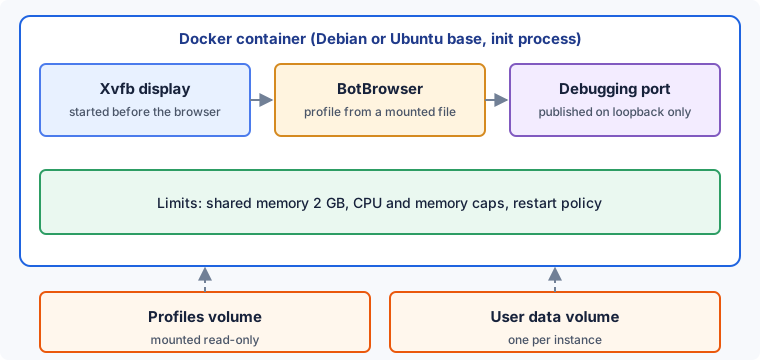
Shared memory comes first. Chrome uses /dev/shm for communication between its processes, and a Docker container gets a 64 MB /dev/shm unless you change it. That is far too small for a browser with real pages loaded, and the usual symptoms are tabs that crash, pages that go blank, or an "out of memory" message while the host has plenty of free RAM. Start with --shm-size=2g on docker run, or shm_size: 2gb in a Compose file, and treat anything below 1 GB as a risk. The size you finally keep should come from measuring your own pages.
The second requirement is a virtual display. BotBrowser needs an X11 display even when it runs headless, so the container has to start Xvfb before the browser and export DISPLAY to match. If the entrypoint starts the browser first, the container exits immediately with a "Cannot open display" message. A short wait after Xvfb starts is the simplest fix, and a health check that confirms the display socket exists is the more careful one.
The third is the base image. Chrome-based browsers depend on glibc, so use a Debian or Ubuntu base. Alpine uses musl and does not run these binaries. The documented image uses Ubuntu 22.04 with the shared libraries listed in the Dockerfile below. A missing library shows up as a start-up failure, so keep the package list in version control and rebuild the image rather than patching a running container.
The fourth is an init process. A browser spawns child processes, and when one of them is orphaned, nobody reaps it. Over a long run, those zombie processes accumulate. Pass --init to docker run, or set init: true in Compose, so Docker's own init process becomes PID 1 and cleans them up.
The fifth is a separate user data directory for every browser process. Inside a container that directory lives in the container's writable layer and disappears when the container is removed, so mount a volume at the path if you want cookies and storage to survive a restart. Do not let two running containers share one directory, because two browsers writing to the same profile directory corrupt each other's state.
| Requirement | Docker setting | What you see without it |
|---|---|---|
| Shared memory of at least 1 to 2 GB | --shm-size=2g or shm_size: 2gb | Crashes and blank pages under load |
| Virtual display before launch | Xvfb in the entrypoint, DISPLAY=:10.0 | "Cannot open display" at start |
| glibc base image | Debian or Ubuntu, not Alpine | Binary fails to start |
| Init process | --init or init: true | Zombie processes accumulate |
| Own user data directory | A volume per instance at /app/data | Lost sessions, or corrupted state when shared |
Ubuntu and Linux binaries require an eligible BotBrowser plan. The Docker deployment documentation lists ENT Tier 1 or higher for them, so confirm your plan before building an image around the .deb package.
Build the image and start one container
The Dockerfile below follows the BotBrowser Docker documentation. It installs the shared libraries and Xvfb, installs the BotBrowser .deb package that you downloaded for your plan, and creates the two directories the container uses for profiles and user data. The --platform=linux/amd64 flag pins the architecture so an image built on one host builds the same way on another.
FROM --platform=linux/amd64 ubuntu:22.04
ENV DEBIAN_FRONTEND=noninteractive
ENV DISPLAY=:10.0
RUN apt-get update && apt-get install -y \
    libnss3 libatk1.0-0 libatk-bridge2.0-0 \
    libcups2 libdrm2 libxcomposite1 libxdamage1 \
    libxrandr2 libgbm1 libxkbcommon0 libgtk-3-0 \
    libpangocairo-1.0-0 libpango-1.0-0 \
    libwayland-client0 libwayland-server0 \
    libdbus-1-3 libatspi2.0-0 libasound2 libxss1 \
    fonts-liberation libcurl4 libvulkan1 \
    xvfb curl ca-certificates \
    && rm -rf /var/lib/apt/lists/*
COPY botbrowser_*.deb /tmp/
RUN dpkg -i /tmp/botbrowser_*.deb || apt-get install -f -y \
    && rm /tmp/botbrowser_*.deb
RUN mkdir -p /app/profiles /app/data
WORKDIR /app
COPY entrypoint.sh /app/entrypoint.sh
RUN chmod +x /app/entrypoint.sh
ENTRYPOINT ["/app/entrypoint.sh"]
The entrypoint starts the virtual display and then replaces itself with the browser through exec, so signals from docker stop reach the browser directly. Everything you pass after the image name arrives as "$@", which means the same image can run with different profiles and proxies without a rebuild.
#!/bin/bash
Xvfb :10 -screen 0 1920x1080x24 -ac &
sleep 1
exec chromium-browser \
    --headless \
    --no-sandbox \
    --disable-dev-shm-usage \
    --user-data-dir=/app/data \
    --remote-debugging-port=9222 \
    --remote-debugging-address=0.0.0.0 \
    "$@"
Two flags in that script deserve a comment. --disable-dev-shm-usage tells Chrome to write its shared memory files to /tmp instead of /dev/shm. It is an alternative mitigation for a small /dev/shm. Once it is set, Chrome stops using /dev/shm, so --shm-size matters mostly when the flag is absent, and keeping both is a precaution. --no-sandbox is used because containers commonly run without the privileges the Chrome sandbox asks for. That choice moves the isolation boundary to the container, so run the container as a limited user where your image allows it, keep Docker's resource limits on, and never mount host paths you would not hand to the browser.
Build the image, then start a single container with the shared memory size, the init process, a read-only profile mount, a user data volume, and the debugging port bound to the host's loopback address.
docker build -t botbrowser:latest .
docker run -d --name botbrowser --init --shm-size=2g \
  -v "$PWD/profiles:/app/profiles:ro" \
  -v bb-data:/app/data \
  -p 127.0.0.1:9222:9222 \
  botbrowser:latest \
  --bot-profile=/app/profiles/profile.enc \
  --proxy-server=socks5://user:[email protected]:1080
The -p 127.0.0.1:9222:9222 form matters. A bare -p 9222:9222 publishes the port on every host interface, and the remote debugging port gives whoever reaches it complete control of the browser. Binding to loopback keeps it reachable from the host only, and an SSH tunnel or an internal network is the way to reach it from elsewhere. The Docker run reference describes the publish syntax, the --shm-size option, and --init in detail.
Stopping a container is part of the design too. docker stop sends SIGTERM and waits ten seconds before it sends SIGKILL. Because the entrypoint hands control to the browser with exec, the browser receives the signal and can close its pages and flush user data. If your sessions need longer to finish, raise the stop timeout with --stop-timeout or stop_grace_period in Compose, and tag your images with a version instead of latest so that a rollback is a single tag change.
Proxy credentials in the example are placeholders. Pass real values at run time through your secret store, an environment file, or Compose secrets, and keep them out of the image and out of version control.
Mount profiles and keep user data per instance
BotBrowser loads its configuration from a profile file. In a container, the clean way to supply that file is a read-only bind mount, as in the command above. The image stays the same, the profile lives on the host, and replacing a profile means editing a file and restarting the container. Nobody rebuilds anything, and nobody can modify the file from inside the container because the mount is read-only.
Use --bot-profile when each container should start from one named profile. That is the right shape for a fleet where one container has one proxy, one region, and one profile that you chose on purpose. The path you pass has to match the path inside the container, so a mismatch between the mount target and the flag is the most common reason for a "profile not found" start-up error.
Use --bot-profile-dir when a container should pick one profile from a directory on its own. BotBrowser selects one .enc file from the directory each time it starts. The two flags cannot be combined, and if you pass both, the directory takes precedence. Choose the directory form when profile variety matters more than a fixed pairing, and the single-file form when a container's profile must be known in advance.
Match the profile package to your BotBrowser major version. Pairing a profile package with a different major version is not what the documentation describes, so keep a profile directory per version and mount the one that matches the image. Because profile files are mounted and not baked in, upgrading the browser and upgrading the profiles become two separate, reversible steps.
The mounted profile file, not the container host, controls profile-driven behavior. That is a useful property for operations, but do not read it as a promise that every base image, kernel, host, proxy, and target site produces the same result. Test the combination you actually run, and keep the image tag, BotBrowser version, and profile file name in your deployment record.
User data deserves the same care. A named volume per instance, such as bb-data or bb1-data in the examples, keeps cookies, local storage, and other session state across restarts while keeping each instance independent. Remove the volume only when you want that instance to start clean. For short, disposable runs, skip the volume entirely and let the container's writable layer disappear with the container.
Scale with Docker Compose
Compose describes each instance as a service and keeps ports, mounts, limits, and restart behavior in one reviewable file. The version below runs two containers from the same image. Each one has its own profile file, its own proxy, its own user data volume, and its own debugging port on the host.
services:
  bb-1:
    image: botbrowser:latest
    init: true
    shm_size: 2gb
    mem_limit: 4g
    cpus: 2
    ports:
      - '127.0.0.1:9222:9222'
    volumes:
      - ./profiles:/app/profiles:ro
      - bb1-data:/app/data
    command:
      - --bot-profile=/app/profiles/profile-1.enc
      - --proxy-server=socks5://user:[email protected]:1080
    restart: unless-stopped
    healthcheck:
      test: ['CMD', 'curl', '-f', 'http://localhost:9222/json/version']
      interval: 30s
      timeout: 10s
      retries: 3
  bb-2:
    image: botbrowser:latest
    init: true
    shm_size: 2gb
    mem_limit: 4g
    cpus: 2
    ports:
      - '127.0.0.1:9223:9222'
    volumes:
      - ./profiles:/app/profiles:ro
      - bb2-data:/app/data
    command:
      - --bot-profile=/app/profiles/profile-2.enc
      - --proxy-server=socks5://user:[email protected]:1080
    restart: unless-stopped
    healthcheck:
      test: ['CMD', 'curl', '-f', 'http://localhost:9222/json/version']
      interval: 30s
      timeout: 10s
      retries: 3
volumes:
  bb1-data:
  bb2-data:
The memory and CPU limits stop one runaway container from using the whole host, and the health check calls the debugging endpoint inside the container so Docker can mark an unresponsive instance as unhealthy. The restart: unless-stopped policy brings a crashed instance back without a person watching. Docker's default logging driver keeps container logs without a size cap, so set the max-size and max-file logging options on long-running services before a busy instance fills the disk. Limits that are too tight will cause the same crashes as a small /dev/shm, so size them from measurements of your own pages, and expect the numbers to differ between workloads.
Fixed port mappings are fine for a few named services and a poor fit for replicas. When you want several identical containers that each pick a profile on their own, drop the fixed host port and let Docker choose one.
services:
  botbrowser:
    image: botbrowser:latest
    init: true
    shm_size: 2gb
    ports:
      - '127.0.0.1::9222'
    volumes:
      - ./profiles:/app/profiles:ro
    command:
      - --bot-profile-dir=/app/profiles
    restart: unless-stopped
The 127.0.0.1::9222 form publishes a random free host port on loopback for each replica. Start the replicas and list the assigned ports with the commands below. Each replica has its own container filesystem, so its user data is private to it and disappears with it. If a replica needs durable session state, give it a named service and a named volume as in the first file.
docker compose up -d --scale botbrowser=3
docker compose ps
Capacity depends on the host, the pages you load, and the proxies you use. Increase the replica count in steps, watch memory, CPU, and restart counts on the host, and stop when headroom gets thin. The performance optimization guide covers measurement, and the headless server setup article describes the same display and library requirements on a bare host, which helps when you compare a container against a server that already works.
Verify the container and read common failures
A deployment is ready when the browser starts, the debugging endpoint answers, a navigation completes, and the logs contain no loader errors. Start with the logs and the endpoint.
docker logs botbrowser
curl http://127.0.0.1:9222/json/version
A missing shared library appears in the container log at start-up as a loader error that names the file, and a container that exits at once is almost always this, a wrong profile path, or a missing display. If the endpoint returns a JSON document with the browser version, the process is running and listening. Then run a test navigation from the host. The snippet below connects through the loopback port and loads a neutral page.
import { chromium } from 'playwright-core';
const browser = await chromium.connectOverCDP('http://127.0.0.1:9222');
const context = browser.contexts()[0];
const page = await context.newPage();
await page.goto('https://example.com');
console.log(await page.title());
await browser.close();
Printing the page title is enough. It proves that the display, the libraries, the profile mount, and the network route all work together, and it gives you one command to repeat after every image change. Keep this check small. A deployment test should confirm that the container works, and it should not try to measure the behavior of any third-party site. For a visual check from inside a container, Reliable Screenshot Capture in Headless Browsers covers how to capture screenshots consistently.
| Problem | What to check |
|---|---|
| Container exits immediately | Run docker logs and look for a missing library, an unreadable profile path, or a missing display |
| "Cannot open display" | Start Xvfb before the browser and confirm DISPLAY=:10.0 is set in the image |
| "Out of memory" or crashing pages | Raise --shm-size, then raise the memory limit if the container itself is capped |
| Cannot reach port 9222 from the host | Keep --remote-debugging-address=0.0.0.0 inside the container and publish the port on loopback |
| Zombie processes accumulate | Add --init or init: true |
| Profile not found | Compare the mount target with the --bot-profile path, and use docker exec to list the directory |
| Slow first start | The first launch with an empty user data directory takes longer, and later starts reuse it |
Treat the debugging port as a production risk. Anyone who can connect can read pages, run scripts, and control the browser, so never publish it on a public interface, put a firewall rule or private network in front of it, and give each container its own port. Logs are the other place to be careful. Redact proxy credentials and account identifiers before sharing a log outside the team.
What BotBrowser covers and what stays with you
BotBrowser supports loading a profile file from a read-only mounted volume with --bot-profile, or choosing one per container with --bot-profile-dir, so each container starts from the configuration defined by its mounted profile and profiles can change without rebuilding the image. BotBrowser cannot provide the container's shared memory, virtual display, system libraries, proxy quality, or orchestration, and it does not guarantee that any target site accepts the traffic or that Linux binaries are available without an eligible plan.
The split below keeps responsibilities clear when something fails. The first column is what the browser does with a mounted file. The second is the part that your team operates.
| Covered by BotBrowser | Operated by your team |
|---|---|
Loading a profile file passed with --bot-profile | Shared memory, CPU and memory limits, and the host |
Selecting a profile from --bot-profile-dir at start-up | The virtual display, system libraries, and base image |
Applying proxy settings given with --proxy-server | Proxy quality, rotation, and the network route |
| Running with the user data directory you provide | Volumes, backups, and cleanup of session state |
| Starting from the mounted profile, with no image rebuild | Debugging port exposure, network policy, access control, and orchestration |
Use that table as a checklist during an incident. A crash that mentions memory is a container limit. A start-up error that names a library is an image problem. A profile path error is a mount problem. None of these are browser-profile questions, and none of them are solved by changing the profile. Keep outcomes on specific sites outside the deployment's definition of done, because they depend on the site's own rules and on the traffic you are authorized to send.
When you are ready to build, download BotBrowser and check that your plan includes Linux binaries. For a larger fleet, the enterprise page describes plan options. CLI recipes lists the flags used here and their combinations, which is useful when you extend the entrypoint.
Sources
- BotBrowser Docker deployment documentation
- Docker container run reference
- Docker Compose services reference
Practical conclusion
Put the five container settings into the image and the launch command rather than into a runbook nobody opens: the --shm-size value, the Xvfb step with DISPLAY=:10.0, the Ubuntu 22.04 base, --init, and one user data volume per instance. Then start a single container, mount the profile with --bot-profile, and confirm that the loopback-published 9222 port answers before you scale the same file with Compose.
This article is part of the guide: Browser Deployment and Release: Operations Map
Related Articles
Scaling Browser Contexts with Per-Context Profiles
DeploymentBrowser Container Resource Limits: A Practical Planning Method
DeploymentSERP Scraping at Scale: Browser Requirements
DeploymentReliable Screenshot Capture in Headless Browsers
DeploymentBrowser Process Isolation and Operational Ownership
DeploymentHeadless Browser Setup on Ubuntu Servers
Run the same check in BotBrowser
Load a profile, keep the signals you just read about consistent inside the browser, and confirm the result on your own machine before a rollout.